


 KDAN PDF for Windows
 Lifetime License for Windows
 LynxPDF for Enterprise
 ComPDF SDK
 Edit PDF
 Add Image
 Add Hyperlink
 Annotate PDF
 Fill in PDF
 Rotate & Crop
 Rearrange PDF
 Add Pages
 Delete Pages
 Bates Numbering
 Sign PDF
 Password Protect
 Unlock PDF
 Merge PDF
 Split PDF
 Convert PDF
 OCR PDF
 Compress PDF
 Slideshow Mode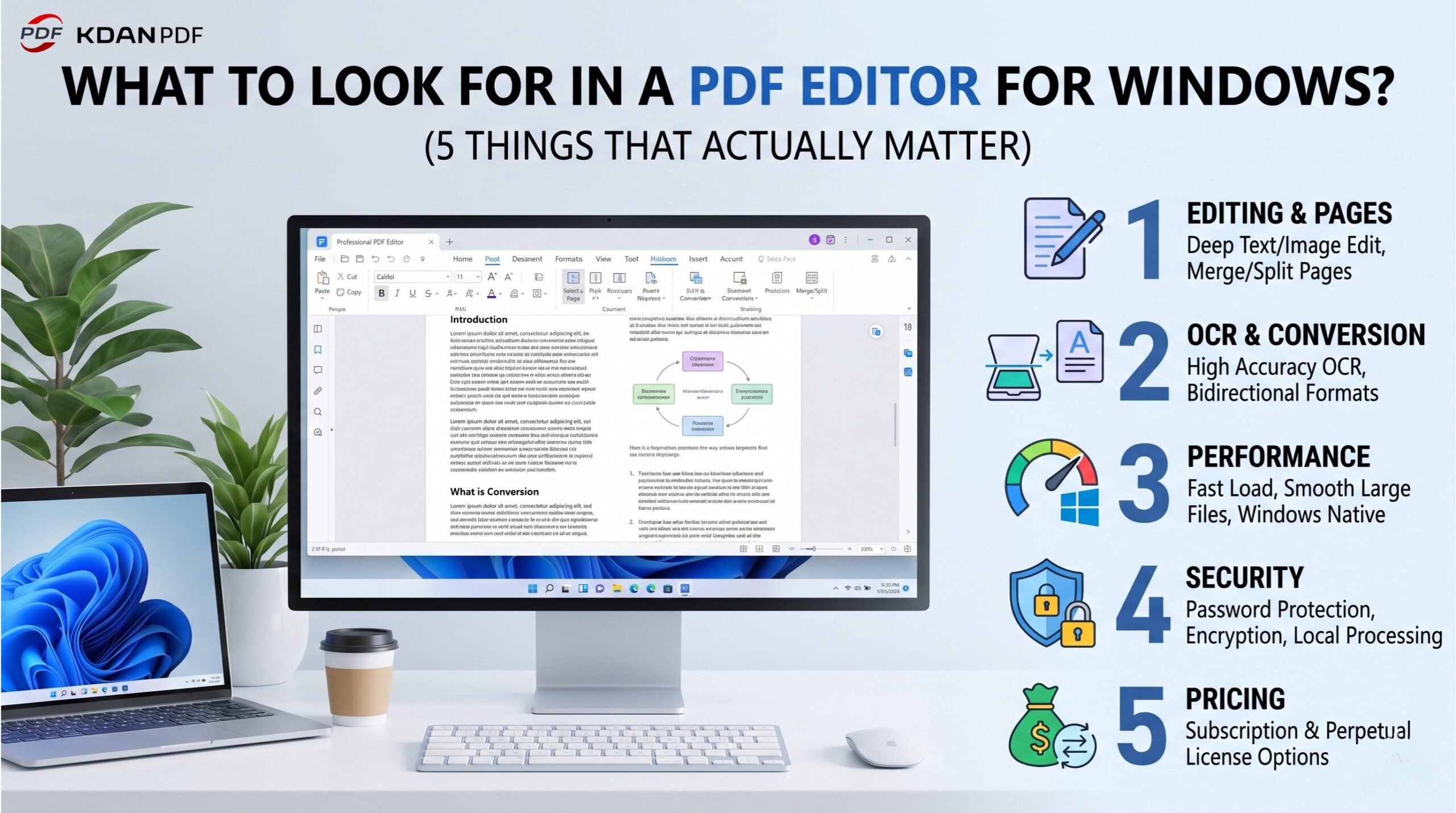
What Should I Look for in a PDF Editor for Windows? (5 Things That Actually Matter)
Choosing a PDF editor for Windows comes down to five core dimensions: editing depth, OCR and conversion accuracy, interface performance, security controls, and pricing model. A tool that scores well across all five will handle everything from quick annotations to full document reconstruction — without locking you into an expensive ecosystem.
Windows users have no shortage of PDF tools to choose from. The problem is most product comparisons focus on feature checklists, not on how those features hold up when you’re under deadline, processing a 200-page scanned contract, or trying to convert a complex spreadsheet without breaking the layout. This guide gives you a framework to evaluate any PDF editor — with KDAN PDF as a concrete reference point.
1. Editing and Page Management — Can It Handle Real Work?
The first thing to test is how deeply you can actually edit a PDF. Surface-level tools let you add sticky notes or fill form fields. A professional-grade editor lets you click into any text block and rewrite it, swap out images, adjust column layouts, and push the document through a complete revision cycle — without exporting to Word first.
What editing features actually matter day-to-day
- Inline text editing: Can you click on a paragraph and retype, or does the tool force you to use a floating text box that breaks the original flow?
- Image replacement: Can you swap a logo or diagram in place, maintaining the surrounding layout?
- Annotation layers: Highlights, comments, and markup should sit on a separate layer from the source content, so they’re easy to show/hide or strip before final export.
- Redaction: For legal or compliance workflows, true redaction (not just a black rectangle on top) is non-negotiable.
Page management beyond basic reordering
Page management is where mid-range tools often fall short. Dragging pages to reorder them is table stakes. What separates serious tools is the ability to merge documents from multiple sources, extract specific page ranges into standalone files, split a 150-page report into per-section PDFs, and do it all without losing bookmarks, hyperlinks, or embedded fonts.
KDAN PDF’s Organize Pages function handles merge, split, extract, and reorder in a single interface. You can drag pages from different open documents into one output — useful when assembling reports from multiple team members.
2. OCR and File Conversion — How Well Does It Preserve Formatting?
Scanned documents and image-based PDFs are useless without OCR (Optical Character Recognition). But not all OCR engines perform equally — and conversion fidelity between PDF and Office formats is where many editors quietly fail.
Why OCR quality varies between tools
OCR accuracy depends on the engine’s ability to handle mixed-language documents, handwriting, low-resolution scans, and complex table structures. A good OCR engine produces a searchable PDF where the text layer precisely matches the visual layout. A poor one produces misaligned text, broken sentences, and garbled numbers — which is worse than no OCR at all if you’re using the output in a downstream workflow.
- Test with a real scanned document, ideally one with tables or multi-column text
- Check that numbers and special characters convert correctly (dates, currency, legal clause numbering)
- Verify that the original visual layout is preserved, not just the raw text
Conversion accuracy: the silent dealbreaker
PDF-to-Word conversion is the most common format task professionals run. The problem is that PDF format doesn’t natively preserve the structural information Word uses — so every converter has to infer spacing, paragraph breaks, table cell boundaries, and font styles from visual clues alone. Even a 95% accurate conversion can produce documents that take 20 minutes to fix.
When evaluating a tool, convert a document that has mixed content: a paragraph, a data table, a bulleted list, and a header with a logo. Open the Word output and check whether the table held its cell structure, the list remained a list (not a block of text with manual line breaks), and the header image didn’t shift position.
KDAN PDF’s conversion engine supports bidirectional conversion for Word, Excel, PowerPoint, and image formats. The layout-preservation algorithm handles column-heavy documents and tables with merged cells — common pain points in legal and financial documents.
3. Interface and Performance — Does It Run Well on Windows?
A powerful feature set means nothing if the software is slow to launch, freezes on large files, or has an interface that requires three submenus to access the tools you use every day. Performance on Windows deserves explicit evaluation, not just a checkbox on a spec sheet.
Key performance checkpoints:
- Startup time: Opening a 50MB document should take seconds, not 30 seconds
- Large-file rendering: Scroll through a 300-page PDF with embedded images — does it stay smooth?
- Multi-document handling: Can you have five PDFs open in tabs without memory consumption spiking?
- Windows 11 compatibility: Confirm native support, not just a compatibility mode
Interface design also affects how fast you work. Editors that organize tools into a logical ribbon (rather than burying them in file menus) reduce the cognitive load during high-volume document days. If you’re processing 30 files before lunch, the difference between two clicks and five clicks per operation adds up.
4. Security and Privacy — Is Your Data Protected?
PDF editors handle sensitive data by default — contracts, financial reports, HR documents, client records. Security is not a premium add-on; it should be present in every tier of a credible tool.
Evaluate four things:
- Password protection: Can you set both open passwords (to restrict access) and permission passwords (to restrict editing, printing, or copying)?
- Encryption standard: AES-256 is the current industry benchmark for PDF encryption. Any tool that doesn’t specify its encryption standard warrants skepticism.
- Local processing: For confidential documents, does the tool process files locally on your machine, or does it route files through a cloud server even for basic operations? Cloud routing is a compliance risk in regulated industries.
- Redaction permanence: Confirmed redacted content should be permanently removed from the content stream, not merely visually obscured.
KDAN PDF applies industry-standard encryption and supports both open and permission password controls. File processing for core editing operations runs locally on Windows — your documents don’t leave the machine unless you explicitly use a cloud sync or share feature.
5. Pricing and Fit — Subscription or Perpetual License?
Pricing model matters as much as price. Many professionals discover too late that a “low monthly cost” compounds to well over $200/year — with features gated behind higher tiers and no option to own the software outright.
Three models dominate the market:
- Subscription (monthly/annual): Predictable cost, always-updated. Risky if the vendor raises prices or discontinues the product.
- Perpetual license: One-time purchase, own it indefinitely. Lower total cost if you keep software for 2+ years.
- Freemium: Free tier with core features; pay to unlock advanced tools. Best for occasional users who don’t need OCR or full conversion.
The benchmark comparison most Windows users make is against Adobe Acrobat — which is subscription-only and positioned at a premium price point. If your workflow doesn’t require PDF creation from scratch or advanced print production features, a mid-market tool at a fraction of the cost will cover 95% of daily tasks.
How KDAN PDF Checks All Five Boxes
Verdict summary
KDAN PDF is a Windows-native PDF editor that covers editing, OCR, conversion, security, and flexible pricing without requiring an enterprise subscription. It’s a practical fit for individual professionals and SMB teams who need more than a viewer but don’t need the full Adobe stack.
| Dimension | What to look for | KDAN PDF |
| Editing & pages | Inline text edit, image swap, merge/split | Full text/image editing; Organize Pages with drag-and-drop merge |
| OCR & conversion | Multi-language OCR, layout-preserving conversion | OCR with searchable PDF output; Word/Excel/PPT bidirectional conversion |
| Interface & performance | Fast load, smooth large files, Windows 11 native | Windows 10/11 native; ribbon-based UI; optimized for large document handling VERIFY performance benchmarks |
| Security | AES-256, open + permission passwords, local processing | Industry-standard encryption; local processing for core operations; true redaction |
| Pricing | Transparent tiers, no hidden paywalls | Subscription and perpetual license options available VERIFY current pricing/tiers |
Full-featured PDF editing, OCR, conversion, and e-sign
no watermarks, no upload limits. Start your free trial and see the difference a professional tool makes.
Frequently Asked Questions
Free PDF editors for Windows typically cover basic tasks like annotation and form filling. For OCR, full text editing, and format conversion, a paid or freemium tool with unlockable advanced features — such as KDAN PDF — delivers significantly more reliable results without the quality trade-offs common in fully free tools.
A subscription makes sense if you want automatic updates and multi-device access. A perpetual license is more cost-effective if you use the software consistently over 2+ years and prefer not to depend on ongoing billing. KDAN PDF offers both models, so the choice depends on your workflow, not the vendor’s preference.
Test it with a scanned document that includes a data table and mixed-format content. After OCR, search for a number that appears in the table — if the search finds it and highlights the correct cell, the OCR engine is handling structured content well. Also check that the text layer is correctly positioned over the visual content in the output PDF.
Yes — but only if the tool supports true redaction. True redaction removes content from the PDF’s content stream entirely, not just overlays a black rectangle. Before relying on a redaction feature for compliance purposes, verify with the vendor that redacted content cannot be recovered by selecting text, copy-pasting, or removing the overlay layer.
Adobe Acrobat is the benchmark for PDF creation and advanced print production. For most professionals — editing existing documents, converting formats, adding e-signatures, and managing pages — a well-featured alternative covers daily needs at a lower cost. Evaluate based on your specific use cases rather than brand recognition alone.



Connect with KDAN
Follow us to receive all latest updates and promotions.