


 KDAN PDF for Windows
 Lifetime License for Windows
 LynxPDF for Enterprise
 ComPDF SDK
 Edit PDF
 Add Image
 Add Hyperlink
 Annotate PDF
 Fill in PDF
 Rotate & Crop
 Rearrange PDF
 Add Pages
 Delete Pages
 Bates Numbering
 Sign PDF
 Password Protect
 Unlock PDF
 Merge PDF
 Split PDF
 Convert PDF
 OCR PDF
 Compress PDF
 Slideshow Mode
How to Choose a PDF Editor with AI: A Practical Guide for HR & Admin Teams
As AI becomes part of everyday work, PDF editors are no longer “just for viewing.” Today’s mainstream PDF tools bring AI deeper into the workflow, offering features like AI content summaries, analysis, translation, and content generation.
But the market is crowded. Pricing can be wildly different (subscription vs. credits), and each product highlights different strengths. If you work in HR, Office Administration, People Ops, Recruiting Ops, or Executive Admin, this guide walks you through four real-life scenarios, compares popular AI-enabled PDF editors, and ends with a quick table so you can choose the right tool fast.
PDF AI: Getting Faster without Getting Risky
Finding the Balance Between Efficiency and Security
PDF remains one of the most common formats for office work – think offer letters, I-9s, W-4s, benefit enrollment docs, NDAs, vendor contracts, reimbursement forms, and quarterly reports. PDFs are hard to casually edit and easy to share, which is why they’re everywhere.
However, PDF files often contain valuable and sensitive information. Security concerns are a major reason many teams hesitate to use AI in document workflows. Before we dive into product comparisons, here are a few practical tips to improve document safety.
Tip 1: “Pre-clean” Your PDF before Using AI
This reduces both risk and communication costs. For example:
- Delete unnecessary pages
- Remove internal comments like “DO NOT SEND” or version notes
- Split a large PDF into “safe sections” before running AI tasks
Tip 2: Use Redaction (Redact) properly
Proper redaction permanently removes sensitive text from a document. Once redacted, that content also won’t be included if you run AI on the file afterward.
Tip 3: Understand How Your Data is Stored and Used
Different tools handle data differently. Before you commit, look for clear statements about:
- Whether your content is used to train models
- How long is your upload data being retained
- Where processing happens
Adobe and KDAN PDF say their generative AI features don’t use customer content to train models. KDAN PDF also automatically deletes uploaded data after 24 hours for added privacy. If you’re using a free service, it’s worth taking a quick look at the data terms – free tools usually come with trade-offs.

Scenario 1: Professional Documents
Let AI Help You Understand While You Read
“I can read it… but I don’t understand what it means.” Does this sound familiar when you are reading NDAs, procurement terms, service agreements, or data handling forms?
What Slows You Down
- Dense legal, HR, commercial wording (“indemnification,” “assignment,” “material breach”)
- Ambiguous sections that create risk
- You finish a paragraph and still can’t answer: “So what do I do?”
In this scenario, you don’t need a longer summary – you need explanations in plain language. The goal is to remove comprehension barriers so the content becomes actionable.
What to prioritize: UI Comfortability
You’ll probably look up terms often, so focus on two things: a UI that makes reading and quick lookups effortless, and pricing that stays reasonable when you use it regularly.
Quick product notes
- KDAN PDF: More “task-driven.” You can use chat to ask AI to explain or translate specific parts.
- Adobe Acrobat AI Assistant: Highly mainstream and trusted, but often expensive.
- Foxit: Emphasizes document Q&A and citations; credit-based pricing is good if you want clear cost control.
- UPDF: Chatbot approach; can explain selected paragraphs.
- PDFelement: Full PDF editing + AI – ideal for those who want one tool for everyday tasks.
- PDFgear: Copilot-style commands – great if you like “one-sentence commands” for summarize/explain/translate.
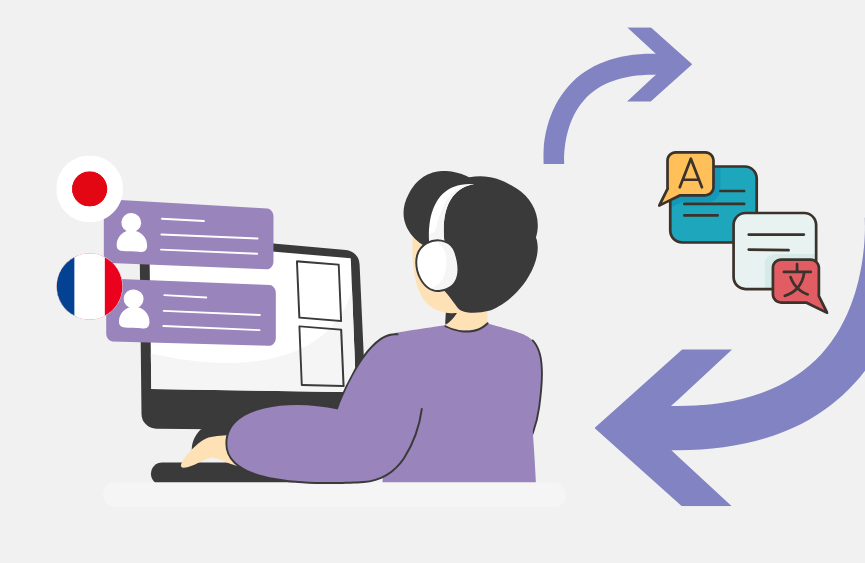
Scenario 2: Foreign-Language Documents
Translate for accuracy – without losing the original meaning
There are two kinds of translation needs,
- Translate only key paragraphs – You already understand 70–80%, but you need an accurate translation for specific clauses.
- Translate the entire document – You need to send/share the translated version internally and want the layout preserved.
What to prioritize
If you only need key sections translated – like a few clauses or form fields – an in-document PDF translator is the easiest option. If you need the whole file translated, general AI tools like ChatGPT or Claude can also work well.
Quick product notes
- KDAN PDF: Best for paragraph translation. Select a paragraph, translate instantly, and view results in a side panel – excellent for “compare while reading.”
- UPDF: Strong focus on full-document translation with preserved formatting, great for formal delivery.
- PDFelement: Offers “quick translation” and “professional translation mode,” suitable if terminology accuracy matters.
- Foxit: Supports translation and multi-file processing; often credit-priced, helpful for strict budget control.
- Acrobat: AI focuses on understanding and Q&A; translation usefulness depends on version, workflow, and usage habits – good as a mainstream benchmark.
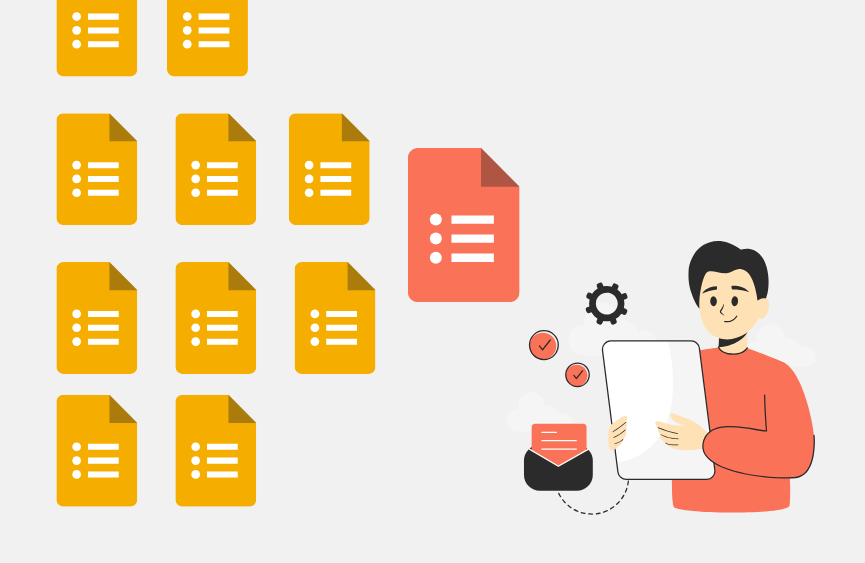
Scenario 3: Handling Forms
Turn Similar PDFs into Structured Tables
Admin and HR teams often deal with large batches of similarly formatted PDFs, such as:
onboarding forms, reimbursement requests, expense claims, registrations, consent forms, and other applications.
The Real Time Sink
The time sink isn’t reading – it’s extracting fields like: name, phone, department, date, amount, and turning them into a table that can be compared and analyzed.
What to prioritize: Accuracy
Accuracy depends heavily on the source file. Before you judge a tool, check first,
- Is the PDF text selectable, or is it a scanned image? Some scanned PDFs require OCR before extraction
- Are forms consistent in layout? Extraction works best on standardized templates
- Are fields simple and structured? Simpler structures lead to better results
Quick product notes
- KDAN PDF is a strong fit for large batches of the same template documents and exporting to spreadsheets.
- Acrobat, Foxit, UPDF, PDFelement, PDFgear can also support Q&A and information organization. But if your goal is “extract fields into a structured table,” it’s best to test with a few real documents before deciding.
Scenario 4: Financial Reports & Operational Docs
Get the takeaway fast, then decide what’s worth deep reading
The pain points of financial reports, monthly reports, and development documentation are clear: too long and too information-dense.
A practical 3-step workflow
- Summary: “What is this document about?”
Extract: key numbers, risks, action items - Decide: which pages deserve a close read
Quick product notes
- KDAN PDF: The AI Chatbot helps pull key points, insights, and risk prompts from long documents – great for building a reading direction first. The team also optimizes models across different document types, supporting consistent accuracy.
- Acrobat AI Assistant: Focuses on trusted document understanding and Q&A, and continues expanding AI coverage across the document workflow.
- Foxit: Provides tutorials for one-click summaries, paragraph summaries, and summary translation – practical for daily use.
- UPDF, PDFelement, PDFgear: Mostly “chat-based understanding” tools; best positioned as “read faster and ask faster.”
Finally, Encryption & Redaction
Why This Matters for Admin & HR
For admin, HR, and staff functions, efficiency and security are equally critical. Sensitive information – customer personal data, employee salaries, contract details, internal annotations – can directly impact the company’s reputation if leaked.
KDAN PDF includes both manual and AI-assisted redaction options, and the AI-assisted approach is often faster and helps reduce missed spots – especially in long, messy documents. Before sharing files externally, it’s a good idea to run a quick redaction pass for Personally Identifiable Information (PII) and internal notes, even if the rest of the document seems “safe.”
Quick Comparison Table
V Strong fit | △ Works, depends on workflow/version | — Not a primary strength
| Product | Explain / Q&A for policies & contracts | Translation | Form extraction to a spreadsheet | Long-doc summaries & insights | Redaction / PII protection workflow |
| KDAN PDF | V | V (great for paragraph translation) | V | V | V (manual + AI-assisted options) |
| Adobe Acrobat | V | △ | △ | V | △ |
| Foxit | V | V | △ | V | △ |
| UPDF | V | V (strong for full-doc) | △ | V | △ |
| PDFelement | V | V | △ | V | △ |
| PDFgear | V | V | — | V | — |
FAQ
Start with your top workflow and pricing model.
If you need “same-template forms to spreadsheet,” prioritize extraction and accuracy tests.
If you want maximum mainstream trust and have a larger budget, choose Adobe Acrobat.
If you need budget control, watch for credit-based AI usage and limits.
It can be. Protect yourself by:
Redacting PII first
Pre-cleaning unnecessary pages
Choose tools with clear data-handling and retention policies. As mentioned earlier, KDAN PDF also takes extra steps to protect your privacy.
KDAN PDF offers AI auto-redaction to quickly spot and remove personal information. Acrobat and Foxit also include redaction tools, but AI-based detection can vary by version – so it’s best to test with a real document before relying on it.
If you need to translate and understand key paragraphs while comparing to the original, KDAN PDF’s side-panel paragraph translation is very efficient for content navigation.
If you need full-document translation with preserved formatting, UPDF is a stronger option.
Choose the PDF AI Tool That Fits Your Daily Tasks
PDF is still one of the safest, most sustainable formats for storage and cross-team sharing. When you combine PDF’s “controllable and preservable” nature with AI’s ability to “understand faster and automate tasks,” your document workload can drop significantly.
One final reminder: more features doesn’t always mean better. The real question is what you deal with most often.
KDAN PDF provides a one-stop toolset for high-frequency PDF tasks in admin, finance, and HR teams – editing, saving, translating, extracting, and protecting documents. Most PDF editors also offer free trials. If you’re interested, download a few options and test them with real documents you handle at work to see which fits your workflow best.
Research Faster with KDAN PDF AI
Unlock AI summaries and cross-device sync. Download KDAN PDF to elevate your academic workflow!



Connect with KDAN
Follow us to receive all latest updates and promotions.