


 KDAN PDF for Windows
 Lifetime License for Windows
 LynxPDF for Enterprise
 ComPDF SDK
 Edit PDF
 Add Image
 Add Hyperlink
 Annotate PDF
 Fill in PDF
 Rotate & Crop
 Rearrange PDF
 Add Pages
 Delete Pages
 Bates Numbering
 Sign PDF
 Password Protect
 Unlock PDF
 Merge PDF
 Split PDF
 Convert PDF
 OCR PDF
 Compress PDF
 Slideshow Mode
How to Convert Pictures to PDF on iPhone: 3 Easy Methods for Any Situation
Imagine you’re at a café, opening a fresh receipt from your phone’s camera for reimbursement. Or you’ve just taken a snapshot of your passport for a rental application and need to send it immediately. These everyday moments highlight why converting a picture to PDF on your iPhone matters—because sharing documents, receipts, ID scans, or hand-written notes becomes far smoother and more professional when wrapped into a single, universal format.
With your iPhone, you don’t need a scanner or a computer: everything happens right in your hand. Among the available options, you have both built-in tools from Apple and powerful third-party apps—offering you choices depending on how simple or advanced you want to go. One standout in the latter category is KDAN PDF, which unlocks more control and flexibility if you often handle and organize PDFs.
In this guide, we’ll walk through why this conversion is useful and how making the right choice of tool can save you time and keep your workflow mobile and efficient.
Method 1: Using the iPhone’s Built-in Photos App
The Photos app offers a surprisingly useful hidden feature that lets you convert images into PDFs in just a few seconds. This method is perfect when you need to quickly turn a picture—such as a receipt, ID card, homework page, or handwritten note—into a format that’s easier to send or store.
How to Convert a Picture to PDF Step by Step
- Open the Photos app on your iPhone.
- Select the picture you want to convert. You can choose a single photo or multiple images if you want them combined into one PDF.
- Tap the Share icon in the bottom-left corner.
- Scroll down and select Print.
- When the print preview appears, place two fingers on the preview and pinch outwards (zoom in).
- The preview immediately transforms into a PDF version of your picture.
- Tap the Share icon again in the top-right corner.
- Choose Save to Files if you want to keep the PDF on your device or in iCloud, or send it directly through AirDrop, Mail, or Messages.
Why This Method Helps
This built-in tool is especially useful when you’re on the go—like submitting a document for school, sending identification for verification, or saving receipts for reimbursement. Since no extra apps or accounts are needed, it’s one of the fastest ways to generate a clean, ready-to-share PDF directly from your camera roll.
Method 2: Using KDAN PDF
If you frequently convert images to PDF or need more control over your documents, KDAN PDF offers a smoother and more flexible workflow than the iPhone’s built-in tools. It’s especially useful when you work with multiple photos, need to edit the PDF afterward, or want to keep everything organized across devices.
How to Convert Pictures to PDF with KDAN PDF
- Open the KDAN PDF app on your iPhonem and tap to create PDFS from your Camera Roll or Files.
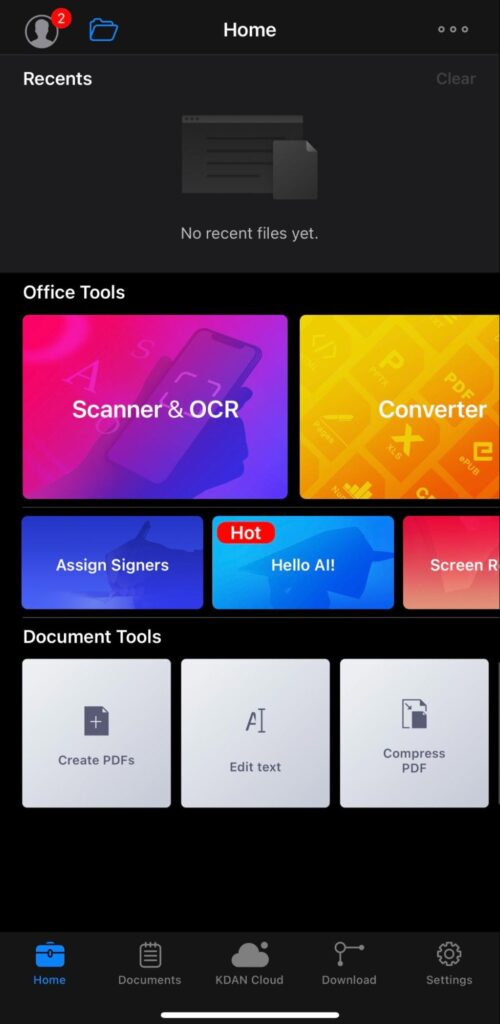
- Select the images you want to convert.
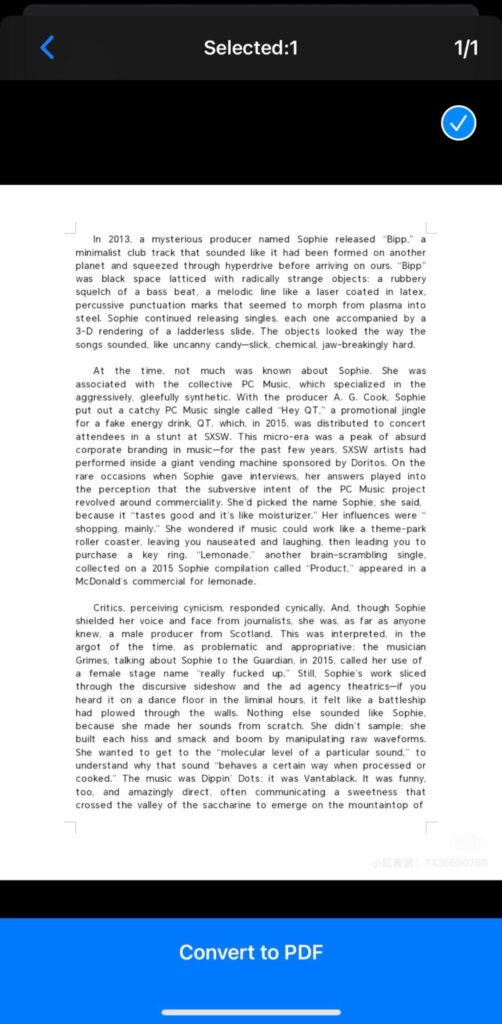
- Choose “Convert to PDF.”
- Once the PDF is created, you can save it locally, upload it to Kdan Cloud, or share it via email or messaging apps.
Why Use KDAN PDF?
- Batch Conversion: Convert multiple photos into a single PDF without repeating steps.
- Built-in Editing Tools: Add annotations, comments, signatures, or text directly after conversion.
- Cloud Organization: Store and access your PDFs securely through Kdan Cloud, keeping everything synced across devices.
This method is ideal for users who need more than just a simple conversion—perfect for students, professionals, or anyone who manages documents regularly on their iPhone.
Batch Convert Photos to PDF
Merge multiple images into one PDF instantly with KDAN PDF. Download for better file management.
Method 3: Using Online Converters
If you prefer not to download any apps, you can convert pictures to PDF directly through online tools. Websites like iLovePDF, Smallpdf, or PDF.io work smoothly on Safari and let you complete the process in just a few steps.
How to Convert Pictures to PDF Online
- Open Safari on your iPhone and visit an online PDF converter (e.g., iLovePDF or Smallpdf).
- Tap Upload and select the photos you want to convert from your Camera Roll or Files.
- Choose Convert to PDF and wait for the tool to process your images.
- Download the finished PDF to your device or save it directly to Files or cloud storage.
When to Use This Method
Online converters are helpful when you only need a quick, one-time conversion and prefer not to install additional apps. Just keep in mind that these tools require an internet connection, and uploading personal documents to third-party websites may not be ideal for sensitive or confidential images.
Tips for Better Results
To ensure your converted PDFs look clean and professional, here are a few simple tips to keep in mind:
- Use high-quality, well-lit photos: Clear, evenly lit images make the final PDF easier to read, especially when converting documents, receipts, or handwritten notes.
- Combine related pictures into a single PDF: Keeping multiple pages together helps with organization and makes sharing much easier—especially for assignments, multi-page forms, or travel documents.
- Compress large PDFs before sending: If your PDF contains several high-resolution photos, consider compressing it to reduce file size. This helps with faster uploads and smoother sharing through email or messaging apps.
- Store important PDFs in cloud services: Save essential documents to cloud platforms such as iCloud, Google Drive, or Kdan Cloud to ensure easy access and a reliable backup when you need them.
While the iPhone’s native Photos app is fine for single images, it can be tedious for multiple files. KDAN PDF is the ideal solution for “Batch Conversion.” It allows you to select dozens of images at once—such as multi-page reports or a week’s worth of receipts—and merge them into one organized, professional PDF document in seconds, saving you the hassle of manual merging.
The iPhone’s built-in “Print to PDF” trick creates a static file that is difficult to edit afterward. If you need to sign a contract, add text, or highlight notes on your newly converted file, KDAN PDF offers an all-in-one workflow. You can convert the image and immediately access a full suite of annotation and e-signature tools without ever leaving the app.
Using web-based converters involves uploading your private images to third-party servers, which poses significant security risks. To protect your privacy, KDAN PDF performs all conversions locally on your iPhone. Your sensitive data stays on your device, giving you peace of mind while offering the convenience of the cloud only when you choose to back it up.
iPhone photos are high-resolution, which often results in massive PDF files that are too large for email attachments. KDAN PDF solves this by providing built-in file optimization. During or after conversion, you can compress the file size to ensure it is light enough for sharing while maintaining the professional clarity required for documents and scans.
Native iOS folders can quickly become cluttered. KDAN PDF acts as a professional document hub. Beyond just conversion, it offers advanced file management, folder categorization, and Kdan Cloud synchronization. This ensures that every receipt or ID scan you convert is not only saved but is also searchable and accessible across your iPhone, iPad, and desktop.
Final Thoughts on Converting Photos to PDF on iPhone
Converting pictures to PDF on an iPhone is easier than ever, and you can choose the method that best matches your needs. The built-in Photos app offers a quick and convenient way to create a PDF with just a few taps—perfect for simple, one-time conversions. Online tools also work well when you don’t want to install additional apps.
For users who need more than basic conversion, KDAN PDF stands out as the most flexible and powerful option. With features like batch conversion, annotation tools, OCR, and cloud organization, it’s ideal for anyone who regularly manages documents or wants long-term file control across devices.
Try converting your pictures to PDF today and keep your documents organized wherever you go.
Convert & Sign PDFs on iPhone
Don’t just convert—edit, sign, and share professionally. Get KDAN PDF for a smarter workflow.



Connect with KDAN
Follow us to receive all latest updates and promotions.