


 KDAN PDF for Windows
 Lifetime License for Windows
 LynxPDF for Enterprise
 ComPDF SDK
 Edit PDF
 Add Image
 Add Hyperlink
 Annotate PDF
 Fill in PDF
 Rotate & Crop
 Rearrange PDF
 Add Pages
 Delete Pages
 Bates Numbering
 Sign PDF
 Password Protect
 Unlock PDF
 Merge PDF
 Split PDF
 Convert PDF
 OCR PDF
 Compress PDF
 Slideshow Mode
Best PDF Editors for Windows in 2026: Free & Paid Compared
A PDF editor for Windows is software that lets you edit text, annotate, convert, and secure PDF files directly on your Windows PC. In 2026, the best PDF editors for Windows combine essential editing tools—such as OCR, file conversion, and password protection—in a fast, user-friendly interface.
PDF files remain one of the most widely used document formats for sharing and storing information on Windows devices. From business contracts and academic papers to personal documents, Windows users need reliable PDF editors to make changes, add notes, and manage files efficiently.
In 2026, PDF editing needs have become more diverse. Users are no longer looking only for basic text edits, but also expect features such as annotation tools, file conversion, OCR for scanned documents, and secure document handling. At the same time, there is growing demand for lightweight and user-friendly PDF editors that work smoothly on Windows without complex setup.
This guide focuses on the key features that define a good PDF editor for Windows and compares free and paid options available in 2026. By reviewing common use cases and practical considerations, it aims to help users identify the PDF editor that best fits their workflow and editing requirements.
How We Evaluated These PDF Editors
To identify the best PDF editors for Windows in 2026, we assessed each tool based on five core criteria:
- Editing capability — Can it handle direct text edits, image adjustments, and layout changes?
- OCR accuracy — How well does it convert scanned or image-based PDFs into editable text?
- Ease of use — Is the interface intuitive for both new and experienced users on Windows?
- Value for money — Does the pricing reflect the features offered, including free plan availability?
- Windows performance — Does the software run smoothly without excessive resource usage?
Tools were selected based on their feature sets, user reputation, and practical suitability for different Windows workflows in 2026.
What Makes a Good PDF Editor for Windows
A good PDF editor for Windows should support a wide range of editing tasks while remaining stable and easy to use. At a minimum, it should allow users to edit text and images directly within a PDF, enabling quick corrections, layout adjustments, and content updates without recreating the document.
Text and image editing
Edit text and images directly within PDF files to correct errors, update content, or adjust layouts without recreating the document.
Annotation and commenting tools
Use highlights, notes, drawing tools, and comments to review documents, collaborate with others, or study efficiently.
PDF merge, split, and conversion
Combine multiple PDFs, extract specific pages, and convert PDF files to editable formats such as Word or Excel.
OCR for scanned PDFs
Convert scanned or image-based PDFs into searchable and editable text using Optical Character Recognition (OCR).
Security and ease of use
Protect documents with passwords or encryption while maintaining a simple, intuitive interface for smooth use on Windows.
10 Best PDF Editors for Windows in 2026
Tool Best For Free Version OCR Starting Price Adobe Acrobat Enterprise / Professional ❌ ✅ ~$129/yr KDAN PDF All-around / AI features ✅ ✅ Free / ~NT$1,884/yr Foxit PDF Editor Business teams ❌ ✅ ~$129/yr PDF-XChange Editor Power users ✅ (limited) ✅ ~$62 one-time Nitro PDF Pro Business workflows ❌ ✅ ~$180/yr Smallpdf Simple / casual use ✅ (limited) ❌ Paid tier PDFgear Free users ✅ ❌ Free Sejda Basic editing ✅ (limited) ❌ Paid tier UPDF Modern UI / cross-platform ✅ (limited) ✅ Subscription LibreOffice Draw Budget / open-source ✅ ❌ Free
Choosing the best PDF editor for Windows in 2026 depends largely on how you work with PDF files. While some users need advanced editing, OCR, and security features for professional workflows, others simply want a lightweight tool for basic edits and annotations.
The following list highlights ten of the best PDF editors for Windows, covering a range of use cases—from full-featured, professional solutions to free and easy-to-use editors. Each tool is reviewed based on its core features, strengths, limitations, and pricing, helping you compare options and find the PDF editor that best fits your needs.
Best Paid PDF Editors for Windows
1. Adobe Acrobat
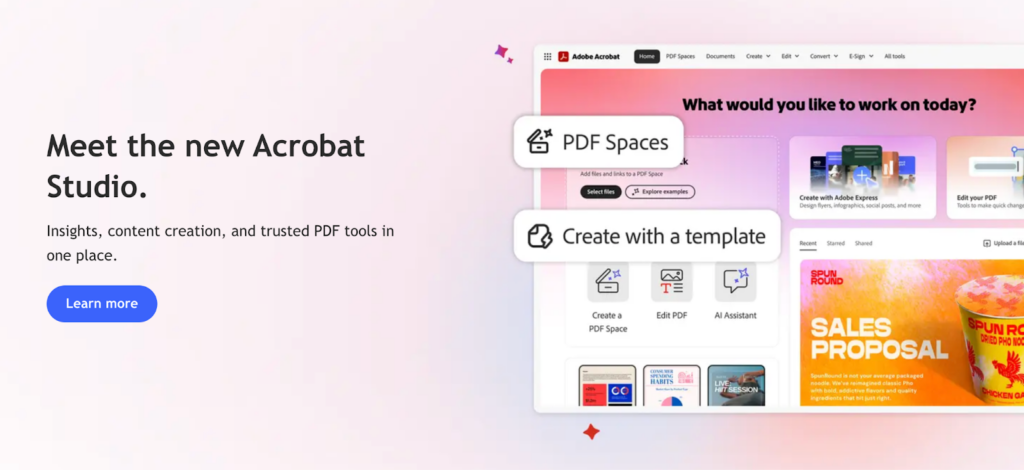
Adobe Acrobat remains the leading PDF editor for Windows with a comprehensive set of editing, conversion, and document management tools. It supports advanced features like form creation, OCR, secure sharing, and collaboration, making it a go-to choice for professionals and enterprise teams.
Advantages:
- Extremely powerful and feature-rich
- Industry standard with excellent PDF compatibility
- Secure document handling and cloud integration
Disadvantages:
- Higher cost compared to most alternatives
- Interface can feel complex for beginners
Pricing: Subscription plans typically start around ~$129–$240/year depending on features and tier.
2. KDAN PDF
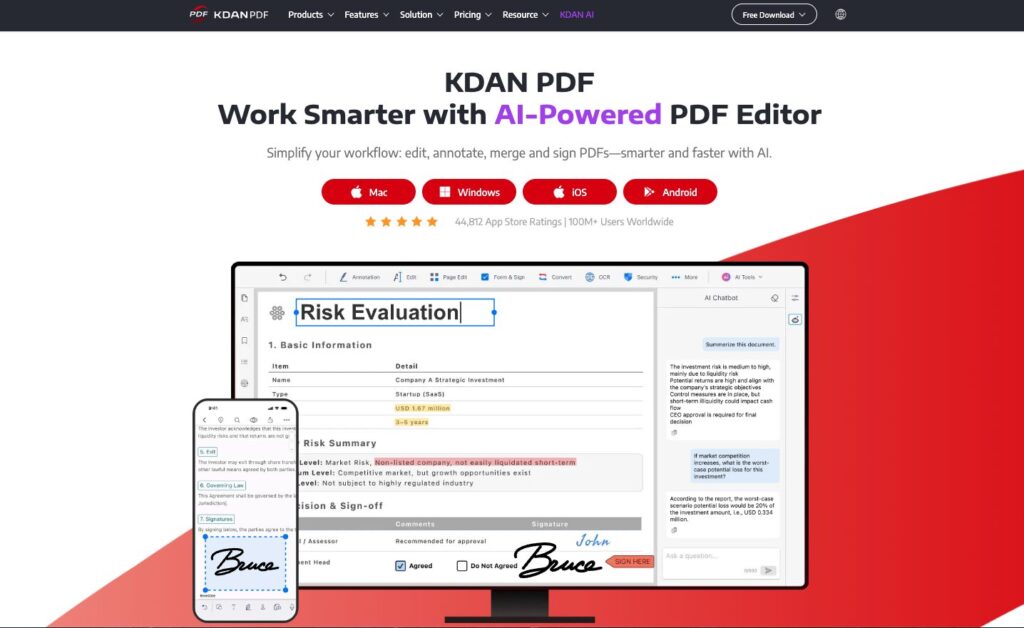
KDAN PDF is an all-around PDF editor for Windows that blends essential editing functions with additional tools like encryption, splitting, merging, and OCR. It also offers AI-powered document analysis and summary features in its latest versions, giving users intelligent assistance beyond basic editing.
Advantages:
- Strong set of editing and conversion tools
- OCR support for scanned documents
- Localized support with strong language coverage
- AI assistant features (2026 upgrades)
Disadvantages:
- Mobile and desktop feature sets can differ
- Fewer third-party integrations than larger platforms
Pricing: Free basic version; paid plans include yearly and lifetime options (e.g., ~NT$1,884/yr / NT$3,768 one-time).
3. Foxit PDF Editor

Foxit PDF Editor is a powerful Windows PDF tool known for its familiar Office-style interface and solid performance. It offers robust editing, annotation, form support, and security features, and integrates with various cloud and enterprise services.
Advantages:
- User-friendly with a ribbon interface
- Strong annotation and review tools
- Good business and collaboration features
Disadvantages:
- Subscription cost can be high for some users
- Advanced features may require higher-tier plans
Pricing: Plans often range ~$129–$159/year depending on features.
4. PDF-XChange Editor
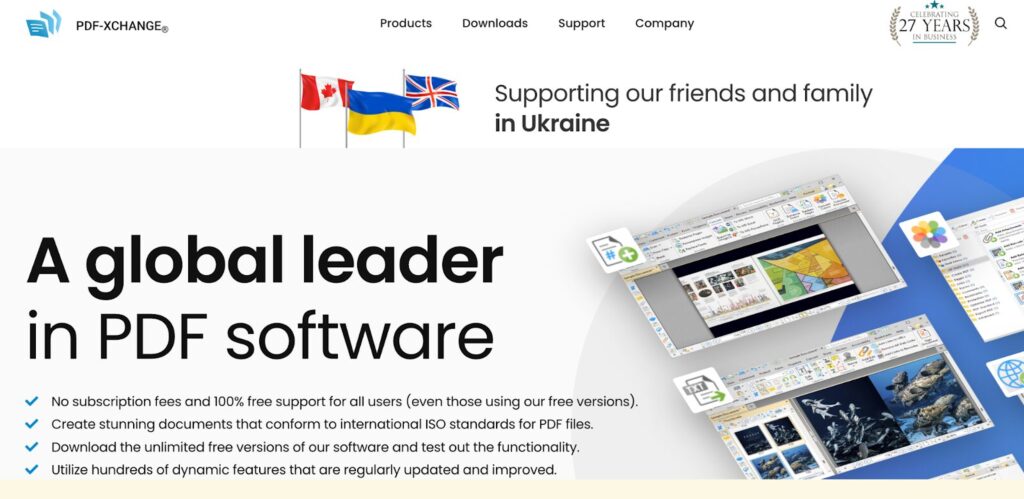
PDF-XChange Editor is a lightweight yet powerful editor that excels in annotation, OCR, and fine-tuned PDF manipulation. It is praised for speed and extensive toolsets, though the interface can feel dense for new users.
Advantages:
- Fast, lightweight performance
- Comprehensive annotation and OCR tools
- Customizable workflow and interfaces
Disadvantages:
- Steeper learning curve
- Advanced features behind paid licenses
Pricing: Lifetime licenses typically range from ~$62 to ~$131.
5. Nitro PDF Pro
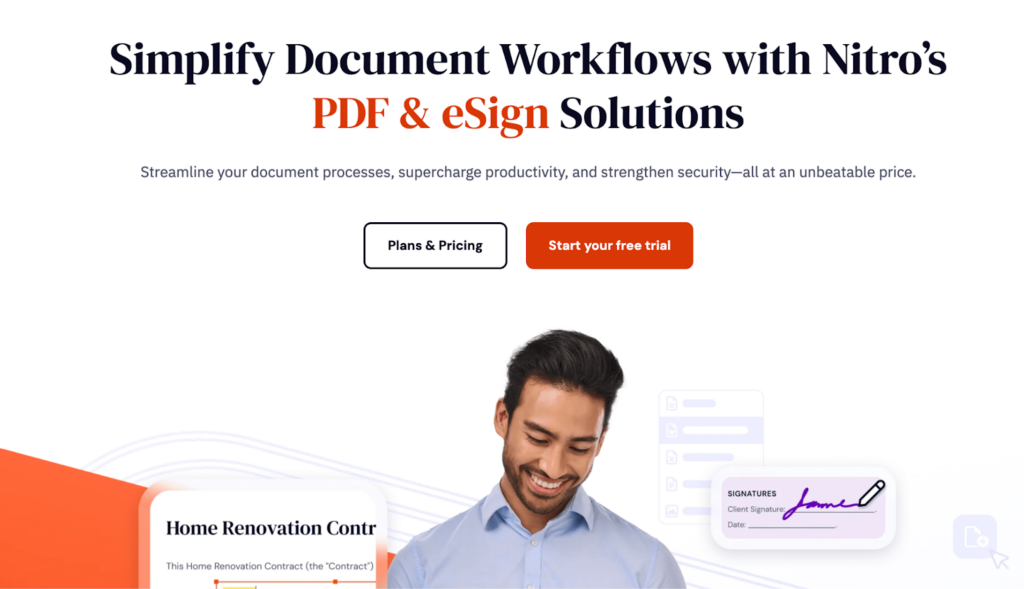
Nitro PDF Pro focuses on business-oriented PDF workflows, offering strong editing, conversion, OCR, and e-sign capabilities. Its interface mirrors popular office tools, making the learning curve smoother for office users.
Advantages:
- Professional-grade editing and batch tools
- Good OCR and conversion performance
- Office-style UI for familiarity
Disadvantages:
- Can be pricey for individual users
- Some advanced cloud collaboration features can be limited versus competitors
Pricing: Around $180/year or one-time multi-year options available.
Best Free PDF Editors for Windows
6. Smallpdf
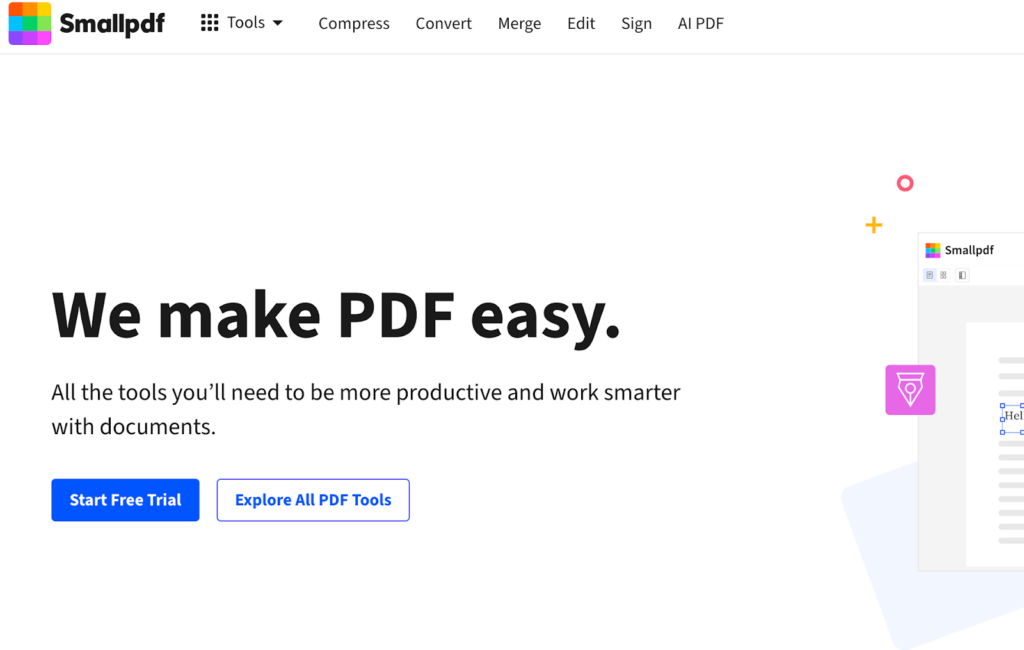
Smallpdf is a streamlined PDF editor that works both online and via desktop apps. It prioritizes simplicity and ease of use for common tasks like editing text, annotating, converting, and compressing PDFs.
Advantages:
- Very intuitive and easy to use
- Web and desktop access
- No steep learning curve
Disadvantages:
- Not as powerful for complex editing
- Some features require a premium subscription
Pricing: Subscription model (often around mid-tier online app pricing)
7. PDFgear
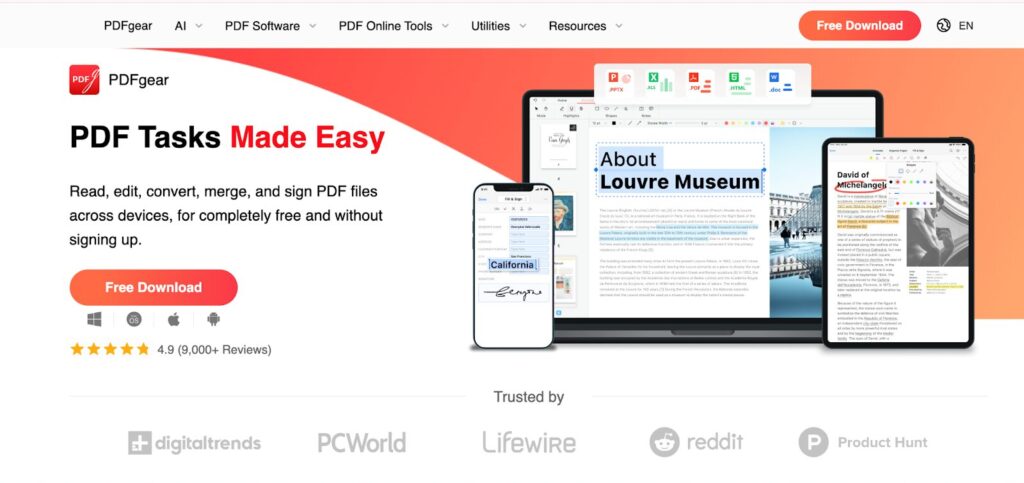
PDFgear is one of the best free PDF editors for Windows, offering a surprisingly complete toolset—including text editing, annotation, conversion, and file management—at no cost. It’s ideal for users who want a free, no-watermark experience with a clean interface.
Advantages:
- Completely free with strong core editing tools
- No watermarks on exports
- Good performance for everyday tasks
Disadvantages:
- Lacks some advanced enterprise-level features
- Free tools may have usage limits
Pricing: Free
8. Sejda PDF Editor
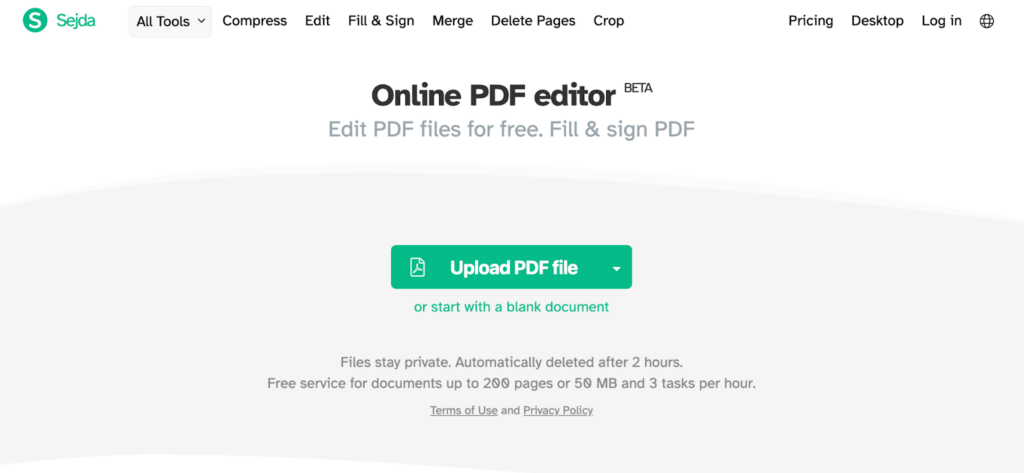
Sejda PDF Editor offers a simple PDF editing environment both online and offline, focusing on essential editing, signing, and form filling. It’s particularly suitable for basic editing tasks and quick adjustments.
Advantages:
- Simple and straightforward interface
- Quick for basic tasks
- Online and desktop accessibility
Disadvantages:
- Feature set is more limited than premium tools
- Restrictions on free usage
Pricing: Free tier with limits; paid plans available.
9. UPDF
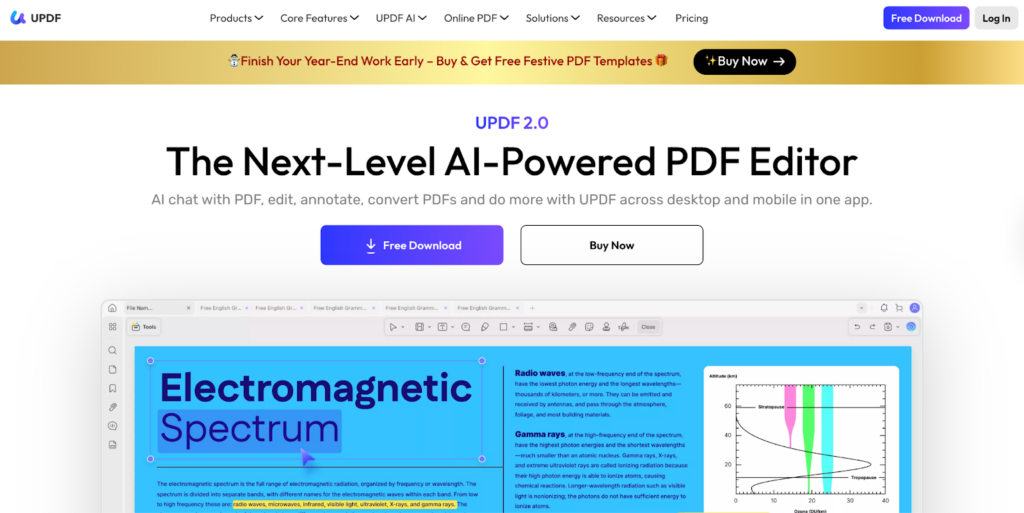
UPDF is a modern PDF editor that provides core editing and annotation features with a clean, contemporary interface. It supports text editing, commenting, and basic conversion, appealing to users who want a straightforward tool.
Advantages:
- Fresh, easy-to-use interface
- Solid editing and annotation basics
- Cross-platform support
Disadvantages:
- Not as feature-rich as enterprise tools
- Advanced workflows may require other software
Pricing: Typically subscription-based with competitive tiers.
10. LibreOffice Draw
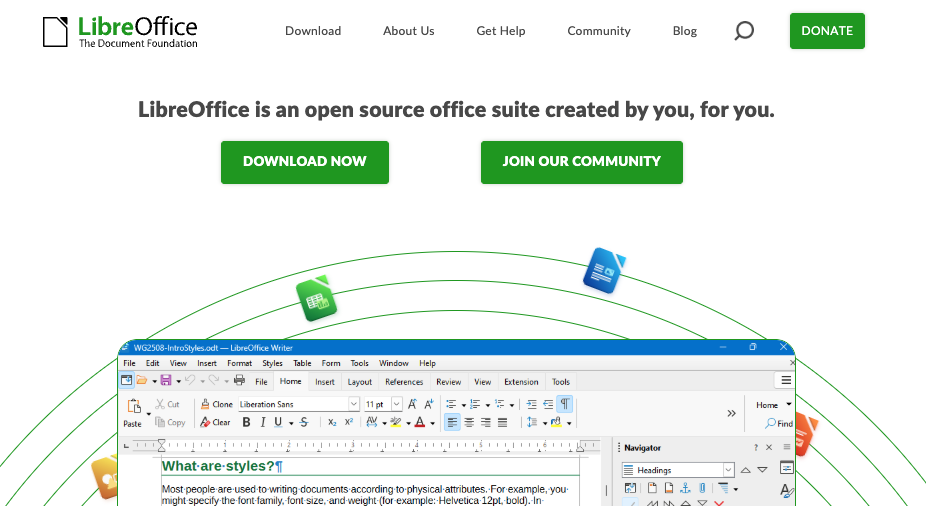
LibreOffice Draw is a completely free PDF editor for Windows, included in the open-source LibreOffice suite. Users can edit PDFs by importing them into the Draw workspace—making it a viable no-cost option for basic layout and text adjustments. While its editing capabilities are more basic, it’s a viable free choice for simple layout and text adjustments.
Advantages:
- Completely free and open-source
- Cross-platform support
- Good for basic adjustments
Disadvantages:
- Editing feels more manual than dedicated PDF tools
- Limited advanced features
Pricing: Free
How to Choose the Right PDF Editor for Windows
Choosing the right PDF editor depends on how often you work with PDF files and what tasks you need to complete. Different users have different priorities, so understanding your use case can help narrow down the most suitable option.
Students & Educators → Prioritize annotation, highlighting, note-taking, and affordability. Best picks: PDFgear (free), KDAN PDF (budget-friendly).
Office & Business Users → Look for advanced editing, batch processing, e-signatures, and enterprise security. Best picks: Adobe Acrobat, Nitro PDF Pro, Foxit PDF Editor.
OCR & Scanned Document Users → Require accurate OCR, layout preservation, and multi-language support. Best picks: KDAN PDF, Adobe Acrobat, PDF-XChange Editor.
Occasional / Light Users → Need a simple interface for viewing, form-filling, and basic edits. Best picks: Smallpdf, Sejda, LibreOffice Draw.
KDAN PDF vs Adobe Acrobat: Which Is Better for Windows?
Adobe Acrobat is the industry standard for professional PDF editing on Windows, offering the most comprehensive feature set available—including advanced form creation, enterprise-grade security, and seamless cloud collaboration. However, its subscription pricing (~$129–$240/year) makes it a significant investment for individual users.
KDAN PDF offers a strong alternative for users who need reliable editing, OCR, and AI-powered document analysis at a lower cost. Its lifetime purchase option and localized language support make it particularly suitable for individuals and small teams looking for an Adobe Acrobat alternative without the ongoing subscription commitment.
Choose Adobe Acrobat if: you work in an enterprise environment, require advanced compliance features, or need the highest level of PDF compatibility.
Choose KDAN PDF if: you want a cost-effective, full-featured PDF editor for Windows with AI assistance and flexible pricing.
FAQs About PDF Editors for Windows
Can you edit PDFs for free on Windows?
Yes, it is possible to edit PDFs for free on Windows using free PDF editors. Many free tools allow basic functions such as viewing, annotating, filling forms, and making limited text edits. However, advanced features like OCR, batch processing, or unrestricted file conversion are often reserved for paid versions. Free PDF editors are generally suitable for light or occasional use.
Does Windows have a built-in PDF editor?
Windows does not include a full-featured built-in PDF editor. While Microsoft Edge allows users to view PDFs, add highlights, and make simple annotations, it does not support direct text editing, advanced conversion, or OCR. For more comprehensive PDF editing tasks, a dedicated PDF editor is required.
What is the best PDF editor for scanned PDFs on Windows?
The best PDF editors for scanned PDFs on Windows are those with built-in OCR (Optical Character Recognition) that can convert image-based pages into searchable, editable text. Top options include Adobe Acrobat (industry-leading OCR accuracy), KDAN PDF (multi-language OCR with strong Asian character support), and PDF-XChange Editor (fast OCR with layout preservation). For occasional use, free tools like PDFgear offer basic OCR without cost.
What features should I look for in a PDF editor for Windows?
Key features to consider include text and image editing, annotation tools, PDF merging and splitting, file conversion, OCR support, and document security. Ease of use, performance on Windows, and pricing are also important factors when choosing a PDF editor that fits your workflow.
Are paid PDF editors worth it compared to free options?
Paid PDF editors are often worth the investment for users who work with PDFs regularly or require advanced features. They typically offer more accurate editing, better OCR, stronger security, and fewer usage limitations. Free PDF editors can be sufficient for basic tasks, but paid tools provide greater efficiency and reliability for professional use.
Conclusion
The best PDF editors for Windows in 2026 offer a wide range of features to support different editing needs, from advanced document modification and OCR to simple annotation and file management. As PDF remains a standard format for sharing and storing information, choosing a reliable PDF editor is essential for working efficiently on Windows.
For users who require comprehensive editing and professional-grade tools, full-featured PDF editors provide strong performance, security, and workflow support. Those looking for cost-effective solutions can benefit from free PDF editors that cover essential tasks, while students and occasional users may prefer lightweight tools focused on simplicity and ease of use. By considering your specific use case and feature requirements, you can select the PDF editor that best fits your needs in 2026.



Connect with KDAN
Follow us to receive all latest updates and promotions.