


 KDAN PDF for Windows
 Lifetime License for Windows
 LynxPDF for Enterprise
 ComPDF SDK
 Edit PDF
 Add Image
 Add Hyperlink
 Annotate PDF
 Fill in PDF
 Rotate & Crop
 Rearrange PDF
 Add Pages
 Delete Pages
 Bates Numbering
 Sign PDF
 Password Protect
 Unlock PDF
 Merge PDF
 Split PDF
 Convert PDF
 OCR PDF
 Compress PDF
 Slideshow Mode
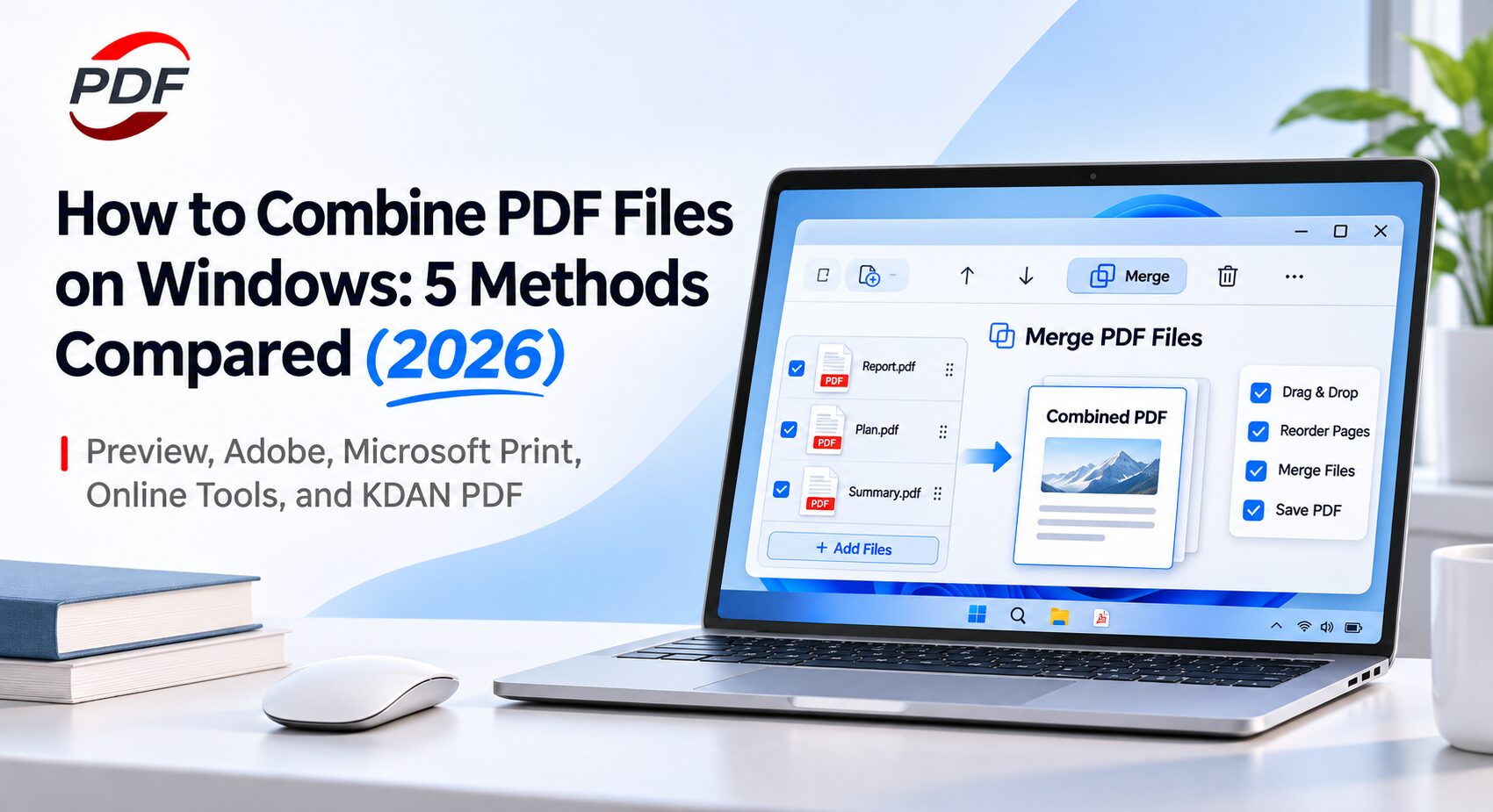
How to Combine PDF Files on Windows: 5 Methods Compared (2026)
Windows does not include a tool that merges PDF files, and Microsoft Edge can open PDFs but cannot combine them. To combine PDFs on Windows, use a dedicated tool such as KDAN PDF, Adobe Acrobat, an AI assistant connected to a PDF tool, or Microsoft Word, and use Microsoft Print to PDF when the files are images. This guide compares the five methods by cost, privacy, and layout accuracy, then walks through each one. Adobe’s guide to merging PDFs on a PC confirms that Edge cannot merge files.
What Windows can and cannot merge
Merging a PDF means combining two or more files into one document with the pages in the order you choose. Windows 10 and Windows 11 open PDFs in Edge by default, but neither Edge nor File Explorer has a merge command.
The one built-in route is Microsoft Print to PDF, a virtual printer that saves printable content as a PDF. How-To Geek describes using it to combine selected image files into one multi-page PDF. The guides reviewed for this article describe it for images, not for merging existing PDF files, so PDFs need one of the tools below.
5 Windows PDF merge methods compared
Five methods cover most Windows merge jobs. The table compares what each one costs, what it can merge, and what to check before choosing it.
| Method | Cost | Type | What it merges | Main trade-off |
|---|---|---|---|---|
| KDAN PDF | Free plan cannot merge; Document 365 is USD 59.99/year; Permanent License is USD 119.99 one time | Desktop app for Windows, also on Mac, iOS, and Android | PDFs, plus Word, Excel, PowerPoint, and image files after conversion | Merging needs a paid plan |
| Adobe Acrobat | Online merge tool described as free; Acrobat Standard is US$179.88/year and Pro is US$239.88/year on annual plans | Browser tool or desktop app | PDFs online; PDFs, Word, Excel, and PowerPoint files in the desktop app | The online tool uploads your files; the desktop app needs a subscription |
| ChatGPT or Claude with the KDAN PDF connector | Connector described as free and unlimited; ChatGPT may need a paid plan to add connectors | Chat assistant plus a remote connector | PDFs by prompt, plus page deletion, compression, and redaction | Files pass through the chat platform; limits are not stated |
| Microsoft Word | Requires Word | Desktop app | PDFs opened as editable copies, then exported to PDF | Layout can shift during conversion |
| Microsoft Print to PDF | Built into Windows | Virtual printer | Image files, as described in the guides reviewed | Not described for merging existing PDFs |
Prices and plan details come from each vendor’s page as of November 27, 2026. Confirm the current rate before buying, because plans change by region and promotion.
Method 1: KDAN PDF Merge PDF tool
KDAN PDF merges PDF files with its Merge PDF tool, and it also imports Word, Excel, PowerPoint, and image files, converts them, and merges them into the same document. It runs on Windows 10 (version 18362.0 or higher, 64-bit) and Windows 11, with a Windows, Mac, iOS, and Android app set that has passed 100 million downloads. Merging is part of the paid plans: the free plan covers viewing, annotating, signing, and form filling, while Document 365 (USD 59.99/year) and the Permanent License (USD 119.99, one time) unlock the full tool set, per the KDAN PDF for Windows page.
An administrator who combines monthly reports into one archive file can follow the steps from KDAN’s Merge PDF guide:
- Open KDAN PDF and click the Home tab at the top of the window to reach the tool panel.
- Click the Merge PDF shortcut card to open the merging workspace.
- Select the files from the internal file list, or choose two or more PDFs from Windows File Explorer.
- Drag the file icons to set the order of each document.
- Click Merge, then choose where to save the new PDF.
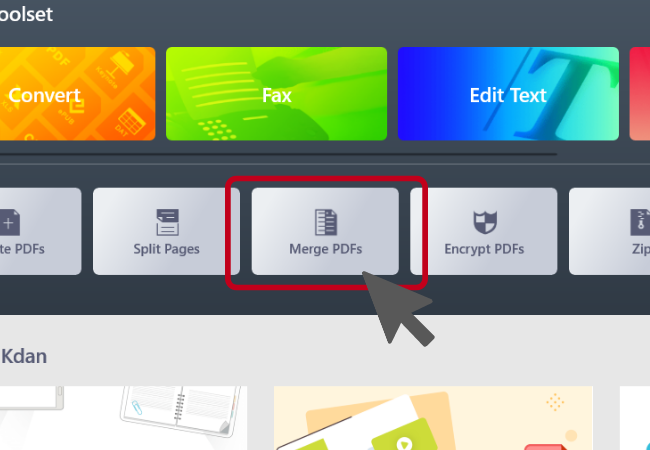
The guide describes a second route, Page Edit, which opens a base PDF in thumbnail view so you can arrange pages directly. Use it when you want to merge and reorder pages in one pass. Document-level tools for administrators are listed on the KDAN PDF Administrator page.
Pros
- One subscription covers more than merging. Document 365 also includes split, compress, convert, and OCR, per KDAN’s subscription page.
- It costs less than Adobe. Document 365 is USD 59.99/year, while Adobe’s pricing page lists Acrobat Standard at US$179.88/year and Acrobat Pro at US$239.88/year on annual plans, so Document 365 costs about a third of Acrobat Standard.
- It takes fewer steps than Word. KDAN PDF merges the PDFs directly, so there is no convert, copy, and export cycle and no conversion layout risk.
- The same app runs on Windows, Mac, iOS, and Android, and a one-time Permanent License is available.
- Redaction is irreversible in KDAN PDF Team testing, which matters when you share a merged file that contains personal data. Auto Redact is part of the Document 365 AI+ plan.
Cons
- Merging is not part of the free plan.
- Auto Redact and the AI features need the Document 365 AI+ plan (USD 99.99/year).
- It needs an installed app on Windows 10 (version 18362.0 or higher) or Windows 11.
Lowest prices of the year.
Up to 50% off KDAN PDF.
Edit PDF text in place, turn PDFs into files AI can read
Method 2: Adobe Acrobat online and desktop
Adobe Acrobat is the long-standing reference tool for PDF work, and it offers two routes. Adobe’s merge guide for PCs describes the browser tool: open the merge PDFs tool, drag and drop your files or select them from your computer, wait for the upload to finish, and click Merge. After merging you can reorder pages, edit the document, and download or compress it.
The desktop app uses the Combine files tool, which Adobe’s help page says can combine PDFs with Word, Excel, and PowerPoint files. Acrobat suits teams that already use Adobe tools or need one app for many formats. The trade-offs are that the browser tool uploads your files, and the sources reviewed do not state the free tool’s file or page limits, so check Adobe’s page before merging large or confidential documents.
Pros
- Adobe’s pricing page lists combining multiple file types as a feature of both Acrobat Standard and Acrobat Pro.
- The browser tool needs no installation and is described as free.
- Acrobat is the most widely used PDF app, so shared files and team habits already match it.
Cons
- Desktop plans start at US$179.88/year (Standard) on an annual plan, or US$299.88 over 12 months on a month-to-month plan.
- The browser tool uploads your files, and the free tool’s limits are not stated in the sources reviewed.
- It costs more per year than KDAN PDF’s Document 365 plan.
Method 3: ChatGPT or Claude with the KDAN PDF connector
A chat assistant can merge PDFs when it is connected to a PDF tool. KDAN PDF MCP is a remote connector that links KDAN’s PDF tools to Claude (web and desktop) and ChatGPT, so you describe the job in plain language and the assistant runs it. The connector page lists merging, page deletion, compression, redaction, version comparison, and password protection, and describes the connector as free and unlimited with no KDAN account or credit card required. Without a connector, Claude can write and run code to create PDF files, according to Claude’s help page on file creation, but the sources reviewed do not document merging as a built-in feature of either assistant.
The setup steps on the connector page are:
- In Claude, open Settings > Connectors > Add Connector. In ChatGPT, open Settings > Plugins > Add New Plugin.
- Paste the connector address, https://mcp.kdandoc.com/mcp, and complete the authorization flow.
- Upload the PDFs to the chat.
- Ask for the merge in plain words, for example: “Merge these PDFs in the order I uploaded them.”
- Preview the result and use the download link the assistant provides.
Pros
- The connector is described as free and unlimited, with no KDAN account needed, and it works on free Claude accounts.
- One prompt can chain several jobs, such as merging, deleting pages, redacting, and compressing.
- The connector’s redaction is described as permanent removal of emails, phone numbers, and ID numbers rather than a cover-up overlay.
Cons
- ChatGPT may need a paid plan to add connectors.
- Your files pass through the chat platform and the connector. KDAN’s page does not say where files are processed, how long they are kept, or what file size limits apply.
- You still need to check the merged file page by page before using it.
Prepare the file before it reaches the assistant. A chat assistant reads the text of every page you upload, and OpenAI’s File Uploads FAQ caps document files at 2 million tokens each. Merging related files, deleting pages the question does not need, and redacting personal data in KDAN PDF first means the assistant receives one smaller file without that data, with fewer pages to read. Auto Redact is part of Document 365 AI+, and KDAN’s AI PDF Editor page lists it as a Beta feature that uses AI and needs an internet connection, so it is a dedicated redaction step, not an offline one. In KDAN PDF Team testing, redaction in KDAN PDF could not be reversed, while redaction done by general AI tools was often only an object laid over the text, which leaves the underlying text in the file.
Lowest prices of the year.
Up to 50% off KDAN PDF.
Edit PDF text in place, turn PDFs into files AI can read
Combine PDFs and images into one file (Method 4: Microsoft Print to PDF)
Microsoft Print to PDF combines image files into a single multi-page PDF without extra software. How-To Geek lists these steps:
- Put the images in the order you want, for example by adding 01, 02, and 03 to the start of each file name. File Explorer prints them in the order it sorts them.
- Select all the images, right-click one, and choose Print. On Windows 11, hold Shift while right-clicking if Print does not appear.
- In the Print Pictures dialog, choose Microsoft Print to PDF as the printer.
- Under Options, set the orientation. If the images look cropped, clear the Fit Picture to Frame box.
- Click Print, name the file, and click Save.
If Microsoft Print to PDF is missing, turn it on in Turn Windows Features On or Off. This route handles images only. To mix PDFs with scans, photos, or Office files in one document, use a tool that imports several formats, such as KDAN PDF’s Merge PDF tool or Adobe Acrobat’s Combine files.
Pros
- It is built into Windows, free, and needs no installation.
- It is quick for a small set of images that are already named in order.
Cons
- It combines images only in the guides reviewed, not existing PDFs.
- Page order depends on file names, and layout control is limited.
Combine PDFs with Word and Google Docs (Method 5: Microsoft Word)
Word can merge PDFs indirectly by converting them to editable documents, joining the content, and exporting a new PDF. Microsoft’s guide gives the menu paths:
- In Word, go to File > Open and select the first PDF. Word warns that it will convert a copy, so select OK. The original PDF stays unchanged.
- Repeat for each PDF, then copy the content from each converted document into one Word document in the order you want.
- Go to Export > Create PDF/XPS Document > Create PDF/XPS.
- Choose a location, adjust Options if needed, and select Publish.
The layout risk is the main limit. Microsoft’s Opening PDFs in Word page says conversion works best for mostly text documents, and that tables with cell spacing, page colors and borders, footnotes, bookmarks, and comments convert poorly. Use Word for short, text-based files, and use a dedicated merge tool when the layout must stay identical.
Google Docs has the same limit. Google Drive can open a PDF as a Google Doc through Open with > Google Docs, and Google’s help page says lists, tables, columns, and footnotes may be lost and the file should be 2 MB or smaller. It rebuilds one PDF at a time as text, so it is a poor fit for combining finished documents.
Word pros and cons
Pros
- no extra tool is needed if you already have Word, and you can edit text while combining.
- it works for short, text-based files.
Cons
- Word converts the PDFs instead of merging them, so layout can shift.
- you copy content between documents by hand, and tables and footnotes convert poorly.
- Google Docs rebuilds one PDF at a time as text and loses lists, tables, and columns.
Before you merge: reorder, delete, and check pages
Fix page order before the merge, because a merged PDF is harder to reorder than its source files. KDAN PDF lets you drag file icons to set the order and offers a Page Edit mode with page thumbnails. The KDAN PDF connector can delete pages from a PDF you upload to Claude or ChatGPT. Adobe’s Combine files help says you can preview, arrange, move, or delete pages before creating the combined PDF.
How to choose a method
When evaluating a PDF merge method on Windows, confirm first: (A) whether it merges existing PDFs or only images, (B) whether it processes files on your computer or uploads them, and (C) what it costs for the file types and page volume you handle.
Frequently Asked Questions
No. Adobe’s guide states that Windows has no built-in way to merge PDFs and that Edge can open them but cannot combine them. Microsoft Print to PDF can combine image files into one PDF, but the guides reviewed do not describe it for merging existing PDFs. Use a dedicated tool for PDF files.
Both merge PDFs and combine other file types. Adobe also offers a browser merge tool described as free, while its desktop plans list at US$179.88/year (Standard) and US$239.88/year (Pro) on annual plans. KDAN PDF’s merge needs Document 365 (USD 59.99/year) or the Permanent License (USD 119.99), and it runs on Windows, Mac, iOS, and Android. The choice depends on your platforms and budget.
For images only, select them in File Explorer, right-click Print, and choose Microsoft Print to PDF. For a mix of PDFs, scans, photos, and Office files, use a tool that imports several formats. KDAN PDF’s Merge PDF tool converts Word, Excel, PowerPoint, and image files before merging, and Adobe Acrobat’s Combine files covers PDFs plus Word, Excel, and PowerPoint.
Adobe describes its browser merge tool as free, and Microsoft Print to PDF is built into Windows. KDAN PDF’s connector for Claude and ChatGPT is described as free and unlimited, though ChatGPT may need a paid plan to add connectors. KDAN PDF’s free app plan does not merge, and paid plans start at USD 59.99/year for Document 365, which adds conversion, compression, and OCR beyond merging.
Browser-based tools take files from your computer through an upload step, and Adobe’s guide describes waiting for the upload to finish before merging. Chat assistants also receive the files you attach, and KDAN’s connector page does not state where files are processed or how long they are kept. For contracts or personal data, redact or remove sensitive pages in an installed tool before uploading, and read the privacy policy of any service you use.
Merge first, then compress the result, because combining files does not shrink them. Adobe’s guide lists compressing the merged file as a next step, and KDAN PDF’s Document 365 plan includes compression. Check your mail provider’s attachment limit before sending.
Set the order before merging: drag files in KDAN PDF, delete pages through the KDAN PDF connector, or rearrange pages in Acrobat. A layout change usually comes from converting through Word or Google Docs, which Microsoft and Google both warn can alter tables, lists, and footnotes. Redo the merge with a dedicated PDF merge tool instead.
Go Beyond Preview: Edit PDF Text on Your Mac
KDAN PDF edits text, merges pages, and compresses files across Mac, Windows, iOS, and Android.


Connect with KDAN
Follow us to receive all latest updates and promotions.