


 KDAN PDF for Windows
 Lifetime License for Windows
 LynxPDF for Enterprise
 ComPDF SDK
 Edit PDF
 Add Image
 Add Hyperlink
 Annotate PDF
 Fill in PDF
 Rotate & Crop
 Rearrange PDF
 Add Pages
 Delete Pages
 Bates Numbering
 Sign PDF
 Password Protect
 Unlock PDF
 Merge PDF
 Split PDF
 Convert PDF
 OCR PDF
 Compress PDF
 Slideshow Mode
Your PDF Workflow Is a Mess — Claude Handles Deleting Pages, Compressing, and Sending in One Conversation
Let’s Recreate a “Totally Normal” File Task
Start with a scenario you’ve probably lived through every week:
You have an internal quote sheet that needs to go out to a vendor for review. The PDF includes pricing details — but page 3 has a cost breakdown table. That’s internal data. The vendor can’t see it.
So you start working through it, and here’s what actually happens:
- Open the source file (Word or Excel) to make sure the content is correct
- Export to PDF
- Open a PDF editor, find page 3, manually delete it
- Save the file — and notice it’s 18MB. Too large to send by email
- Open a separate compression tool (or a browser-based one like iLovePDF or Smallpdf)
- Upload, compress, wait, download
- Open email, attach the compressed PDF, write your message, send
Count it up: 7 steps. At least 4 tools. 3 separate upload-download cycles.
And that’s the version where everything goes right — no recompressing because the quality came out too low, no redoing it because you deleted the wrong page, no losing track of which version is the correct one after too many window switches.
If you multiply this kind of task by 3 to 5 times a week, the time you’re losing every month to tool-switching alone is probably more than you’d expect.
Of Those 7 Steps, How Many Are Actually Work?
Here’s a question: out of those 7 steps, which ones actually require you — your judgment, your expertise, your attention?
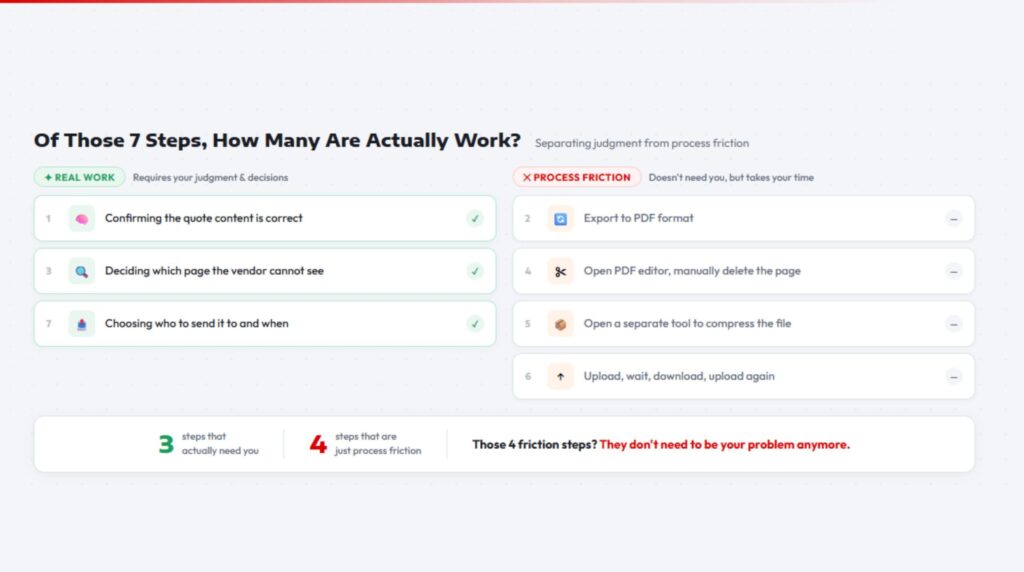
Probably these:
✅ Confirming the quote content is correct — that’s work
✅ Deciding which page can’t go out — that’s work
✅ Choosing who to send it to and when — that’s work
Everything else?
Converting the format, deleting the page, compressing, uploading, downloading, uploading again — none of that is work. It’s process friction. The overhead you have to wade through to get the actual work done.
But every one of those steps demands your attention. Every one makes you wait. Every one pulls you out of what you were doing and forces you to refocus. Research shows that after an interruption, it takes an average of more than 20 minutes to fully regain concentration — and you might go through this kind of context-switching a dozen times in a single day.
The Problem Isn’t You. It’s the Process.
You’ve probably had this feeling: “I didn’t really do anything today — so where did the afternoon go?”
A lot of the time, that afternoon got absorbed by exactly this kind of work. Not one big task, but a pile of similar ones stacked on top of each other. Sending a quote, updating a contract, compressing image files, preparing the external version of a deck… Each one looks small on its own. Together, they form a high-frequency time sink.
This isn’t a you problem. It’s not an efficiency problem.
It’s that PDF document workflows are structurally fragmented by design. The PDF format was built for consistent presentation — it ensures a document looks the same on any device, anywhere. But that same design makes editing and manipulation inherently awkward. Your actual work content lives in one place. Your PDF tools live somewhere else. Your delivery channel is in a third place entirely. These three things are never in the same interface.
That’s a structural problem with PDF workflows. Switching to a faster tool doesn’t fix it.
How Do AI PDF Tools Actually Solve This?
What AI can do now has moved well beyond “answering questions.”
Through a technical framework called MCP (Model Context Protocol), AI assistants can connect directly to external tools and — with your authorization — perform real operations on real files. That includes PDF tasks. In short, MCP takes AI from “can tell you how to do it” to “can actually do it for you.”
KDAN PDF MCP is exactly that kind of AI PDF tool. It lets you complete PDF tasks directly inside Claude’s conversation interface — no switching to other software, no repeated uploading and downloading. You describe what you need in plain language, and Claude, working through KDAN PDF MCP, handles the execution.
Supported operations include: page deletion, compression, encryption, sensitive content redaction, and document comparison — all the tasks that used to mean opening a PDF editor and doing it manually, now handled in a single conversation.
Here’s What It Actually Looks Like — Three PDF Tasks in Claude
Back to that quote sheet. With KDAN PDF MCP connected, the entire workflow collapses into this:
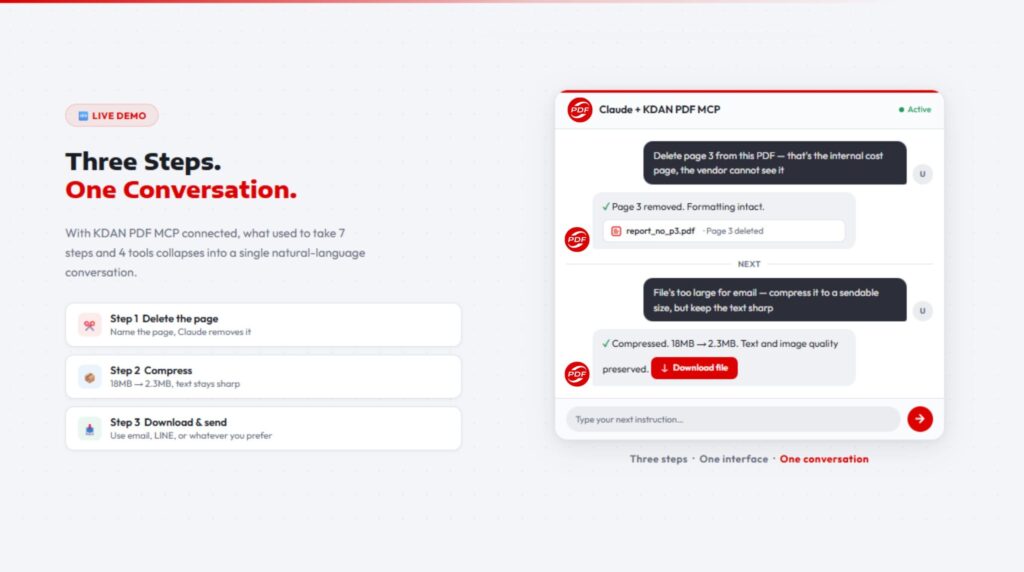
Step 1: Delete the page
“Please delete page 3 from this PDF — that’s the internal cost page, and the vendor shouldn’t see it.”
Claude locates the page, removes it, and outputs the updated file. No manually scrolling to find the right page, no worrying about the formatting breaking after deletion.
Step 2: Compress
“The file’s too large for email — compress it to a sendable size, but keep the text sharp.”
Compression done, ready to download. No opening a separate browser tool, no waiting through another upload progress bar.
Step 3: Download, send however you normally would
The compressed PDF lands on your machine. From there, send it by email, LINE, or whatever you’d usually use.
Three steps. One interface. One conversation.
The tool-switching and waiting time? Gone.
Want to try it now? → Add KDAN PDF into your Claude
Start with One Quote Sheet. Close a Few Windows.
The fragmentation problem in document workflows isn’t going away overnight. The structural limitations of PDF as a format, the scattered tool ecosystem — those are real constraints.
But AI PDF tools point toward a new kind of solution. Not replacing every tool you use, but putting AI in the middle to absorb all those steps that don’t really count as work.
You still need to decide which page can’t go out. You still need to decide who it’s going to. But deleting the page, compressing the file, saving the right version — those parts? Those don’t need to be your problem anymore.
FAQ
A: There aren’t many AI tools that can actually execute PDF operations directly inside a conversation interface. KDAN PDF MCP is one of them. It uses the MCP protocol to give Claude real PDF processing capabilities — page deletion, compression, encryption, sensitive content redaction — all through plain-language instructions, with no additional interface to learn.
A: The fastest way to start is with one specific task. Next time you need to process a PDF before sending it — delete a page, compress the file — try doing it with Claude + KDAN PDF MCP instead. You don’t need to overhaul your entire workflow. Just hand off those steps that “don’t count as work.” For more advanced PDF workflow automation, multiple MCP tools can be chained together.
A: MCP (Model Context Protocol) is an open protocol developed by Anthropic. It lets AI assistants connect to external tools and perform real operations — not just answer questions or give advice. The difference is concrete: a regular AI tool tells you “you can use Smallpdf to compress that.” An AI tool connected via MCP can compress it for you. That’s the gap MCP closes.
A: KDAN PDF MCP works inside Claude’s conversation interface. The whole setup takes less than 2 minutes. See how to add KDAN PDF into your Claude→
BACK TO SCHOOL 2026
AI helps you think.
KDAN PDF helps you finish.
Highlight, annotate, merge, convert, submit
40% off
Windows / Mac / iOS / Android



Connect with KDAN
Follow us to receive all latest updates and promotions.