


 KDAN PDF for Windows
 Lifetime License for Windows
 LynxPDF for Enterprise
 ComPDF SDK
 Edit PDF
 Add Image
 Add Hyperlink
 Annotate PDF
 Fill in PDF
 Rotate & Crop
 Rearrange PDF
 Add Pages
 Delete Pages
 Bates Numbering
 Sign PDF
 Password Protect
 Unlock PDF
 Merge PDF
 Split PDF
 Convert PDF
 OCR PDF
 Compress PDF
 Slideshow Mode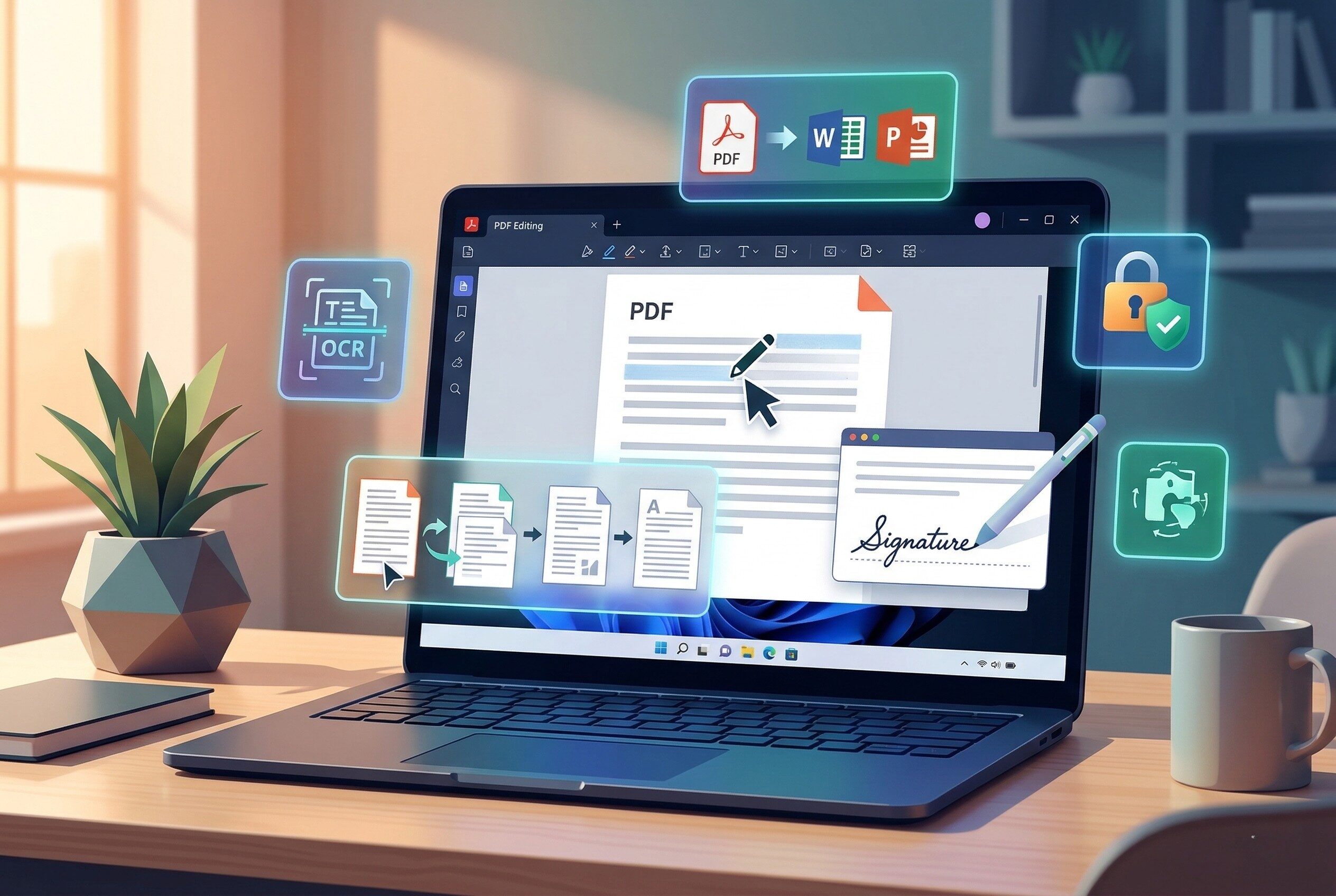
Does Windows 11 Have a Built-In PDF Editor? (The Honest Answer)
You’re on Windows 11, you’ve got a PDF you need to edit, and you’re wondering: do you already have everything you need, or do you have to go download something? It’s a fair question — and a lot of people assume the answer is yes. After all, Windows 11 handles PDFs out of the box, so there must be an editor hiding somewhere, right?
Not exactly. Here’s the real situation.
The Short Answer
No, Windows 11 does not come with a dedicated PDF editor.
What it does come with is Microsoft Edge, which is set as the default PDF viewer and includes some basic markup tools. That’s useful for certain things, but it’s not the same as actually editing a PDF. There’s an important difference between annotating a PDF and editing one — and once you understand that distinction, it becomes pretty clear whether Windows 11’s built-in tools are enough for what you need.
What Microsoft Edge Can (and Can’t) Do
Microsoft Edge lets you highlight text, add comments, draw, and insert text boxes — and you can save a copy of the PDF with your markups included. It also supports filling out standard PDF forms directly in the browser. That covers a lot of everyday, low-stakes scenarios — reading through a document, flagging a few things for someone else, or filling in a simple form field.
But here’s where it stops:
- You cannot edit existing text. If you need to change a name, update a dollar amount, or fix a typo in the original document, Edge can’t do that. It can only add new content on top of the PDF.
- You cannot edit or replace images inside the file.
- You cannot rearrange, merge, or split pages. There’s no way to reorganize a multi-page document, combine two PDFs, or pull out a specific page.
- You cannot run OCR on scanned documents. If someone hands you a scanned contract or a photographed form, Edge sees it as an image — the text is not selectable and cannot be worked with.
- You cannot convert PDFs to Word, Excel, or any other format.
- XFA-based forms are not supported by default. XFA is a legacy form format still used by some government agencies and financial institutions. Edge can’t open these forms out of the box, and you’d need Adobe Acrobat Reader to handle them.
Worth noting: Microsoft and Adobe have partnered to power Edge’s PDF reader with the Adobe Acrobat engine, which improves rendering quality and performance — but this does not add full editing capabilities to Edge for standard users. Better display fidelity is not the same as editing functionality.
What About Microsoft Word?
A lot of people try Word as their next option, and it can work — sometimes. You can open a PDF in Word and it will make a copy and convert the contents into an editable format, but the converted document might not have a perfect page-to-page correspondence with the original — lines and pages may break at different locations.
The results vary a lot depending on the source file. If the PDF contains mostly charts or other graphics, the whole page might show up as an image, and the text can’t be edited at all. Sometimes Word doesn’t detect an element correctly, so the Word version doesn’t match the original PDF — for example, a footnote might be treated as regular body text and end up in the wrong place.
Documents converted from PDF to Word can also be tough to work with because the conversion process doesn’t have a one-to-one matching of how formatting is handled under the hood — spacing gets off, styles are lost, columns collapse. It’s workable if you just need to grab some text, but it’s not a reliable method when the layout actually matters.
And if the PDF is a scanned document? Word can’t help you there either. Scanned PDFs are essentially images, and Word doesn’t include OCR to convert them into editable text.
Bottom line: Word is a last resort for simple, text-heavy PDFs where formatting doesn’t matter much. For anything else, it’s going to cause more problems than it solves.
So When Do You Actually Need a Dedicated PDF Editor?
If you’re only ever reading PDFs or occasionally highlighting something, Edge is probably fine. But if any of the following apply to you, you need a proper PDF editor installed on your machine:
- You need to correct or update existing text in a PDF (names, dates, numbers, clauses)
- You regularly work with scanned documents that need OCR to become editable
- You need to merge, split, or reorder pages across multiple files
- You need to sign documents or collect signatures from multiple parties
- You need to convert PDFs to Word, Excel, or PowerPoint
- You’re dealing with sensitive files — contracts, financial documents, personal records — that you’re not comfortable uploading to a third-party website
That last point matters more than people realize. A lot of “free” online PDF tools require you to upload your file to their servers. For anything confidential, that’s a real problem.
Try KDAN PDF Free for 7 Days
Get full access to every editing feature — no cloud upload, no commitment. See for yourself why it’s a smarter alternative to Adobe Acrobat.
The Best PDF Editor to Install on Windows 11
If you’ve determined that Edge and Word aren’t cutting it, the tool worth installing is KDAN PDF.
Here’s why it stands out:
It covers the core editing tasks in one app. Text editing, image editing, page management (merge, split, reorder), and format conversion — all without juggling multiple tools or browser extensions.
It’s a desktop app that works fully offline. KDAN PDF installs directly on your Windows machine. Your files never get uploaded to a cloud server, which makes it the right choice for sensitive documents. This is a meaningful difference from web-based tools that require an internet connection and handle your data on their servers.
It’s significantly cheaper than Adobe Acrobat. Adobe Acrobat Standard runs $12.99/month on an annual plan — that’s $155.88 per year. KDAN PDF gives you two more affordable options: a subscription plan at $59.99/year (Document 365), which also includes OCR and cross-platform access across Windows, Mac, iOS, and Android; or a one-time Windows permanent license for $119.99 if you’d rather skip recurring payments entirely. Either way, you’re getting full editing functionality at a fraction of the Adobe price.
The Bottom Line
Windows 11 doesn’t include a built-in PDF editor. Microsoft Edge handles reading and light annotation, and Word can convert simple PDFs for basic edits — but neither tool is built for actual PDF editing work.
If you regularly need to edit, sign, convert, or manage PDF files, the practical answer is to install a dedicated desktop app. KDAN PDF is a solid choice for Windows 11 users who want full functionality without the Adobe price tag.
Edit PDFs on Windows — Without the Adobe Price Tag
KDAN PDF starts at $59.99/year, or grab the lifetime license for a one-time $119.99. One download, full features, no recurring fees.
Frequently Asked Questions
No. Windows 11 includes Microsoft Edge as a default PDF viewer with basic annotation tools, but there is no built-in PDF editor. To edit PDFs on Windows 11, you need to install a dedicated application like KDAN PDF.
Not really. Edge lets you highlight, draw, add text boxes, and fill standard forms, but it cannot edit existing content inside a PDF. For true editing — changing text, running OCR, merging pages — you need a separate PDF editor.
For most users, KDAN PDF offers the best balance of features and price. It supports full text editing, page management, e-signatures, and format conversion, and it works offline as a locally installed desktop app. The Document 365 subscription ($59.99/year) also adds OCR and cross-platform access across all your devices.



Connect with KDAN
Follow us to receive all latest updates and promotions.