


 KDAN PDF for Windows
 Lifetime License for Windows
 LynxPDF for Enterprise
 ComPDF SDK
 Edit PDF
 Add Image
 Add Hyperlink
 Annotate PDF
 Fill in PDF
 Rotate & Crop
 Rearrange PDF
 Add Pages
 Delete Pages
 Bates Numbering
 Sign PDF
 Password Protect
 Unlock PDF
 Merge PDF
 Split PDF
 Convert PDF
 OCR PDF
 Compress PDF
 Slideshow Mode
How to Translate Scanned PDF Documents in 4 Simple Steps
Imagine working in an international company where collaboration with global clients is routine. You receive a crucial PDF from your German clients, but there’s a hitch – you don’t understand the language and urgently need to translate German to English. Worse yet, the original document isn’t an editable document, making it almost impossible to translate quickly using traditional online translation tools.
Fret not! In this guide, we’ll unveil the innovative OCR technologies that precisely detect texts, making cross-border communication seamless — almost like a real human translator.
Why Translating Scanned PDF Files is Important?
Translating scanned PDF files is essential in today’s globalized world where access to information in multiple languages is often necessary for both individuals and businesses. As we mentioned in the opening, you might need to work with people from different nations, or require reading articles in different languages. Documents, such as contracts, research papers, and official forms, often contain critical information that may be locked in a foreign language, limiting accessibility and understanding.
By effectively translating these files, you can break down language barriers, ensure that vital content is understood, and open up opportunities for international collaboration. Whether you’re working with legal documents or academic resources, translating scanned PDFs enables smoother communication and more efficient decision-making across borders.
Effortless Scanned PDF Translation: A Step-by-Step Guide with KDAN PDF
Facing the challenge of translating scanned PDFs? There might be a roadblock as Google Translate and Adobe Acrobat cannot directly translate them. But fear not, KDAN PDF is here! Harness the power of Document AI and Optical Character Recognition (OCR) technologies in our new built-in AI translation feature.
Optical Character Recognition (OCR) plays a key role in translating scanned PDF files by converting image-based text into machine-readable content. With OCR technology, you can extract the text from scanned documents and make it editable, allowing translation tools to process and translate the content accurately. Once the text is recognized, it can be easily transferred into a translation platform or tool, enabling seamless translation without having to manually retype the document. With KDAN PDF Reader’s OCR feature, you can streamline the entire translation process, saving time and ensuring greater accuracy. Now, let’s translate your scanned PDFs in an editable file format within the PDF viewer itself!
How to Translate Scanned PDF Documents?
- Open the PDF file in KDAN PDF
- Click “More” from the top toolbar, and choose “Translate”
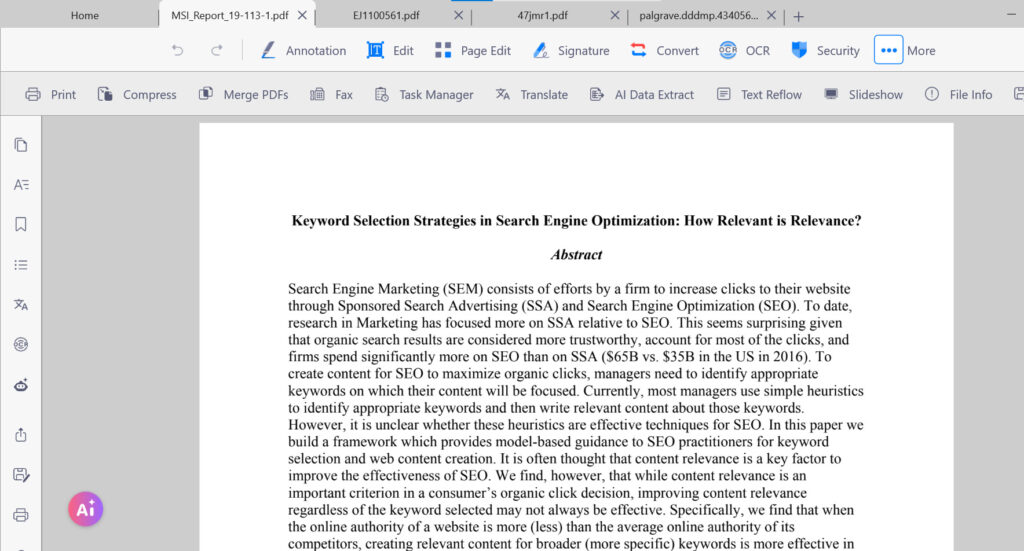
- Select the text in the source language you want to translate and set the language pair
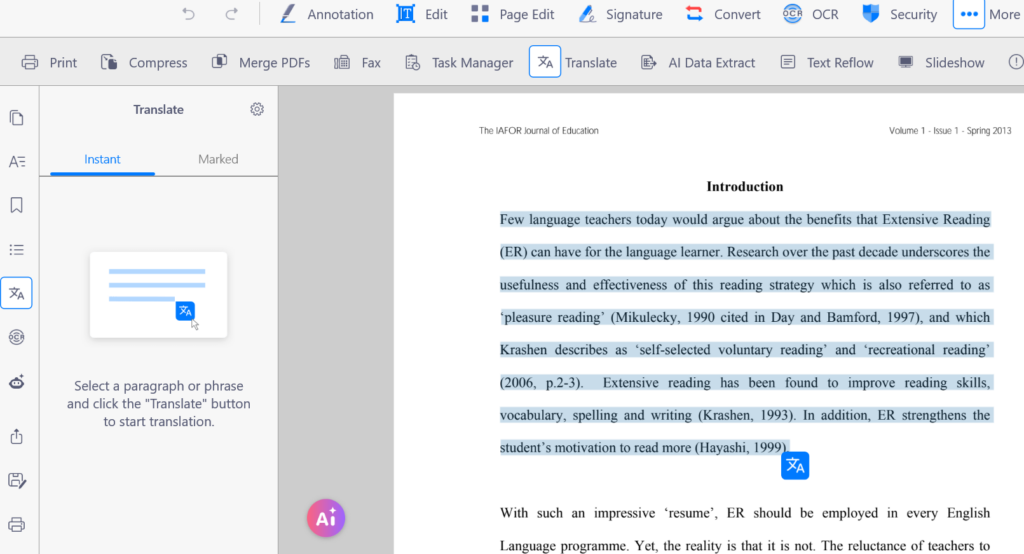
- The batch translation of text will display on the navigation sidebar.
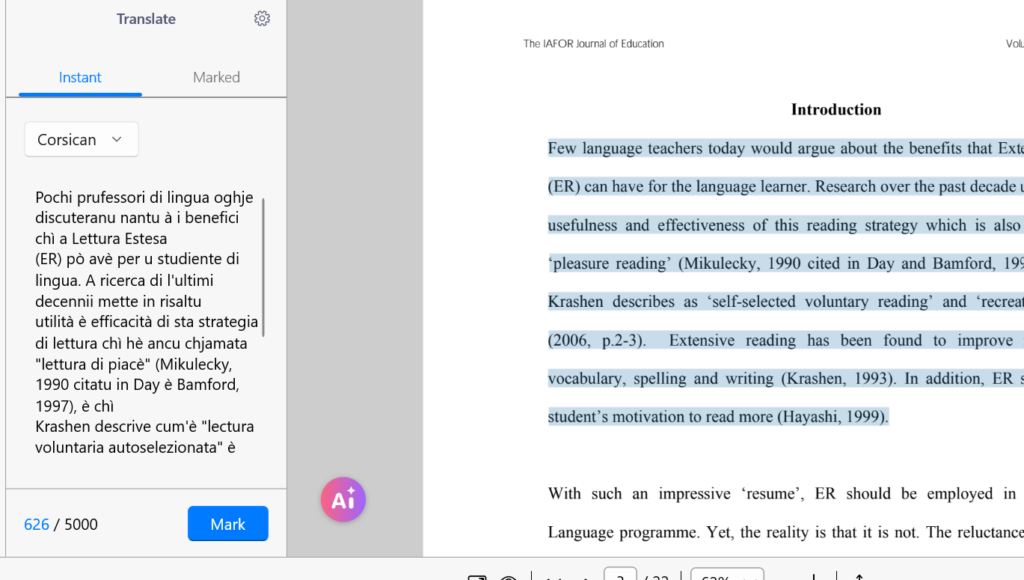
(Note: Currently, the feature is only available on the Windows version.)
How to Adjust the Translated Content?
If you are not satisfied with the translation, you can also edit the result with these simple steps:
- Double-click on the translation result
- Manually edit the translations
- Click “Enter” to save changes
Translate with AI Now
Try AI-powered PDF translation (Windows only). Download KDAN PDF Reader for all your devices.
How to Save the Translated PDF Files?
Finally, these translations can be marked and saved within the PDF file, so you can easily review the content without translating it again:
- Click “Mark”, and a translation mark will be added to the original text
- Click on the mark and the translation will display on the navigation sidebar
Reasons Why You Should Choose KDAN PDF as Your PDF Translator
KDAN PDF stands out for its seamless user experience, enhanced security, and efficiency in marking results. Its OCR capabilities are particularly notable, allowing you to convert scanned documents into editable and searchable text. This feature significantly streamlines the entire document translation processes, making KDAN PDF an essential tool for professionals who require accurate and efficient document management.
Seamless User Experience
Transform your scanned PDF translation experience with KDAN PDF’s built-in features. Enjoy a smooth and intuitive process that simplifies the complexities of the document translation process and mimics the effectiveness of a human translator.
Enhanced Security and Privacy
Opt for security and peace of mind. Unlike online automatic PDF translators, KDAN PDF is an installed software, reducing privacy concerns. Your sensitive documents stay secure on your device.
Efficiency in Marking Results
Maximize efficiency by marking translated results in your target language directly on the original file. Say goodbye to redundant translation efforts – KDAN PDF streamlines the process, saving you valuable time and effort. Be assured that your document formats won’t be altered and PDF content can stay the same, just with accurate translations in your target language.
Translate with AI Now
Try AI-powered PDF translation (Windows only). Download KDAN PDF Reader for all your devices.
Exploring Alternatives: Diverse Options for Translating PDF Documents
As we navigate the landscape of PDF translation, it’s evident that many current PDF editors lack built-in translating features. However, there are alternatives if you haven’t decided to apply KDAN PDF as your best PDF translator. Explore other approaches to translate scanned PDF files.
Convert-and-translate
In the realm of PDF editors, those equipped with built-in language translation capabilities are few and far between. To overcome this limitation, consider converting your scanned PDF files into editable formats using online PDF converters or dedicated software such as Adobe Acrobat, WPS, or UPDF. Once transformed, effortlessly copy and paste the text into Google Translate for seamless translation.
Google Translate’s Camera Scanner
In the realm of PDF editors, those equipped with built-in language translation capabilities are few and far between. To overcome this limitation, consider converting your scanned PDF files into editable formats using online PDF converters or dedicated software such as Adobe Acrobat, WPS, or UPDF. Once transformed, effortlessly copy and paste the text into Google Translate, DeepL, or ChatGPT for seamless translation.
Google Translate’s Camera Scanner
Google Translate supports over 100 languages for text translation. It also includes camera scanning capabilities for about 90 languages. This feature allows you to translate text captured by your device’s camera in real-time and has a secret feature that integrates camera scanning with OCR capabilities.
Simply choose ‘Camera,’ scan your document, and witness text in the original language being translated into your target language, displayed visually on your screen. Keep in mind that while this offers real-time visual translation, the text cannot be saved for future reference. Though this is a quick fix, the translation quality may not be the highest.
Read More: Unlocking Language Barriers: 10 Best Google Translate Alternatives
After translating content using an online tool, converting the translated text back into a well-structured PDF is crucial for maintaining the document’s integrity and original layout. KDAN PDF offers a reliable solution for this task, allowing users to effortlessly convert plain text into PDF format with just a few clicks. Whether you’re working on contracts, research papers, or any other translated documents, KDAN PDF ensures the converted PDFs are professional, well-organized, and easy to share. Its intuitive interface and powerful tools make it the perfect choice for managing translated content efficiently.
FAQ
1. Can KDAN PDF translate handwriting in scanned PDFs?
While KDAN PDF excels at OCR for printed text, translating handwritten content may be less accurate. Handwritten OCR is more complex, so results can vary depending on legibility.
Read more : What is OCR And How Does It Work?
2. Does translating a PDF affect its original formatting?
KDAN PDF preserves the original layout and formatting of your PDF when translating. This ensures that tables, images, and charts remain intact alongside the translated text.
3. What file types can KDAN PDF export after translation?
After translation, you can save PDFs directly or export the extracted text to formats like TXT, DOCX, or RTF for further editing or integration with other tools.
4. How secure is my content when using KDAN PDF?
All translation and OCR processing is done locally on your device (Windows version), ensuring that sensitive or confidential documents never leave your computer, unlike online translators.
5. Can I save the translated PDF as a new file?
KDAN PDF doesn’t create a separate file, but you can save translations directly within the PDF. Just click on the “Mark,” and the translation will show up in the navigation sidebar for easy viewing or copying.
Conclusion : Elevate Your PDF Translation Process Today
In summary, navigating the challenges of translating scanned PDFs led us through innovative solutions. We’ve explored diverse pathways for effective document translation. To elevate your efficiency and streamline the process, consider giving KDAN PDF a try. With its robust features, it stands as a reliable solution in the realm of PDF edition and translation, ensuring a smooth and productive experience for users. Try KDAN PDF today and revolutionize the way you approach accurate file translations.
Convert Translations Fast
Use KDAN PDF Reader to turn translated text into polished PDFs—fast, clean, and share-ready.


Connect with KDAN
Follow us to receive all latest updates and promotions.