


 KDAN PDF for Windows
 Lifetime License for Windows
 LynxPDF for Enterprise
 ComPDF SDK
 Edit PDF
 Add Image
 Add Hyperlink
 Annotate PDF
 Fill in PDF
 Rotate & Crop
 Rearrange PDF
 Add Pages
 Delete Pages
 Bates Numbering
 Sign PDF
 Password Protect
 Unlock PDF
 Merge PDF
 Split PDF
 Convert PDF
 OCR PDF
 Compress PDF
 Slideshow Mode
How to Fill Out a W-9 Form PDF in 2026: The AI-Powered, Stress-Free Guide
It’s that time of year again. You’ve done the hard work, completed the project, and delivered the results. Now, you just want to get paid. But before the invoice clears, your client sends you a dreaded email attachment: “Please sign and return the attached W-9 form.”
For freelancers, independent contractors, and small business owners (SMBs), the IRS Form W-9 is the gateway to getting paid. Yet, it remains one of the most confusing and tedious parts of the onboarding process. Many of us still print it out, fill it by hand, scan it, and email it back—a process that feels ancient in 2026. Others try to use clunky online editors that compromise data security.
You might be thinking, “Should I just subscribe to Adobe Acrobat for $20 a month just to fill out this one form?”
The answer is no. There is a smarter, faster, and more cost-effective way.
In this comprehensive guide, we will walk you through exactly how to fill out a W-9 form PDF using KDAN PDF. We’ll show you how to leverage AI to answer tricky tax questions, how to sign documents legally across all devices (Mac, Windows, iOS, Android), and how to protect your sensitive Social Security Number (SSN) without breaking the bank.
What is a W-9 Form and Who Needs It?
Before we dive into the “how-to,” let’s briefly clarify the “what.”
The IRS Form W-9 (Request for Taxpayer Identification Number and Certification) is a document used by US businesses to get information from independent contractors (you) to report to the IRS how much they have paid you.
Unlike a W-4 form (which is for full-time employees), a W-9 does not withhold taxes from your pay. It simply tells the government: “Hey, I paid this person $X this year, and they are responsible for their own taxes.”
You typically need to fill out a W-9 if:
- You are a freelancer, gig worker, or consultant.
- You are a Limited Liability Company (LLC), partnership, or corporation providing services.
- You have earned (or expect to earn) more than $600 in a tax year from a specific client.
The Problem with Standard PDFs
Most W-9 forms downloaded directly from the IRS website are “fillable,” but they often lack the advanced features you need, such as:
- Explanation of Terms: What does “Backup Withholding” actually mean?
- Professional Signatures: Simply typing your name can look unprofessional and may be rejected by clients. You need a clear, handwritten-style electronic signature.
- Data Security: Sending an unencrypted PDF with your SSN via email is a major cybersecurity risk.
This is where a modern, AI-Powered PDF Editor like KDAN PDF transforms the experience from a chore into a seamless workflow.
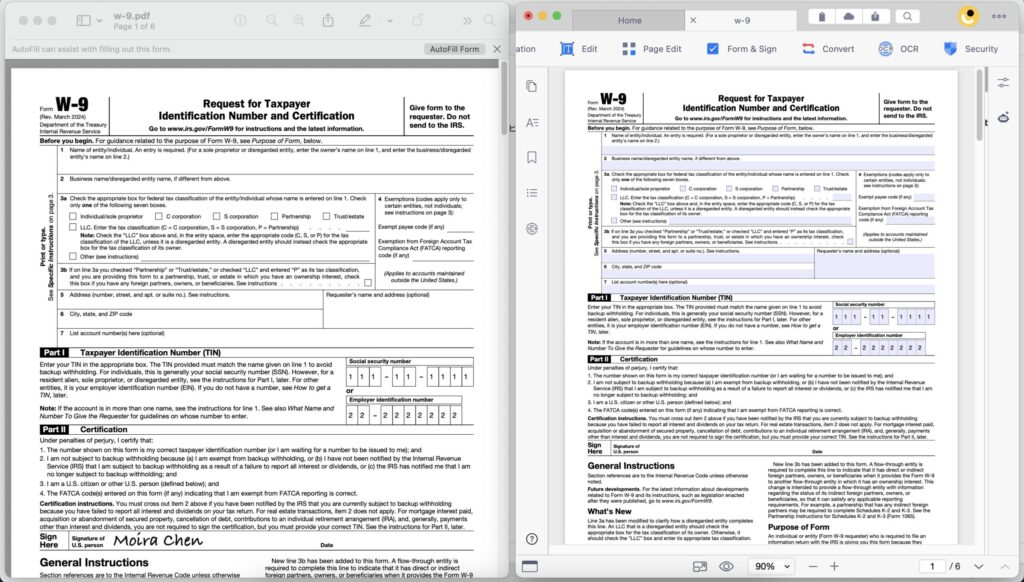
Step-by-Step: How to Fill W-9 Form PDF Using KDAN PDF
Let’s get practical. Follow these steps to complete your W-9 professionally and accurately.
Prerequisite:
- Download the latest W-9 form from the IRS website.
- Download KDAN PDF (Available for Mac, Windows, iOS, and Android).
- Tip: KDAN offers a free trial, so you can follow along immediately.
Step 1: Open and Inspect the Form
Launch KDAN PDF and open your W-9 file.
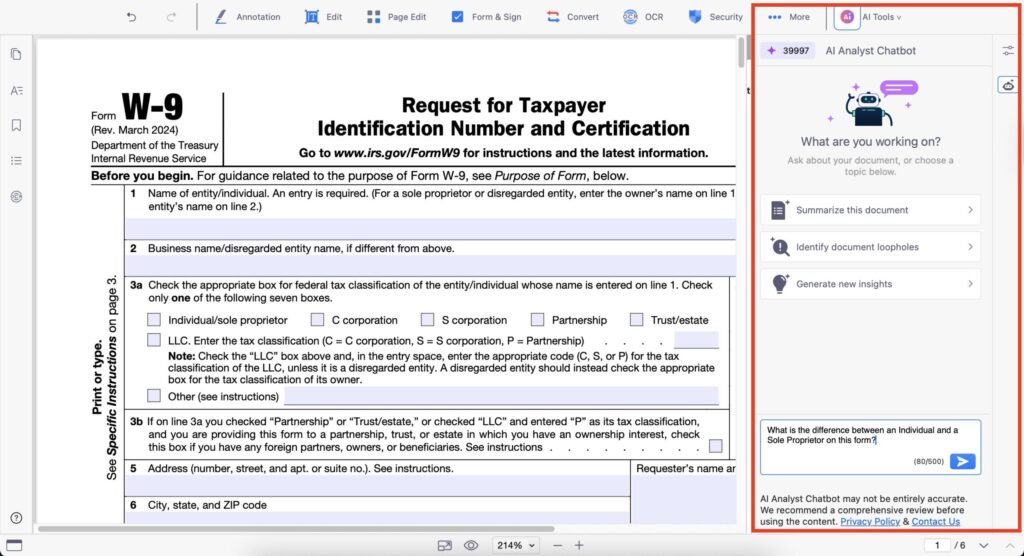
Instead of squinting at the tiny instructions on page 2 of the form, you can use KDAN’s AI capabilities to get instant clarity.
The KDAN Advantage:
If you are confused by the dense legal text, open the KDAN AI Chatbot in the sidebar. You can select a paragraph of the instructions and ask the AI to “Summarize this” or “Explain this in simple English.”
Example Prompt to KDAN AI: “What is the difference between an Individual and a Sole Proprietor on this form?”
KDAN AI Answer: “Both usually report taxes on a personal return. A sole proprietor is someone who owns an unincorporated business by themselves. If you are a freelancer without a registered business entity, you typically check ‘Individual/Sole proprietor’.”
Step 2: Line 1 & 2 – Name and Business Name
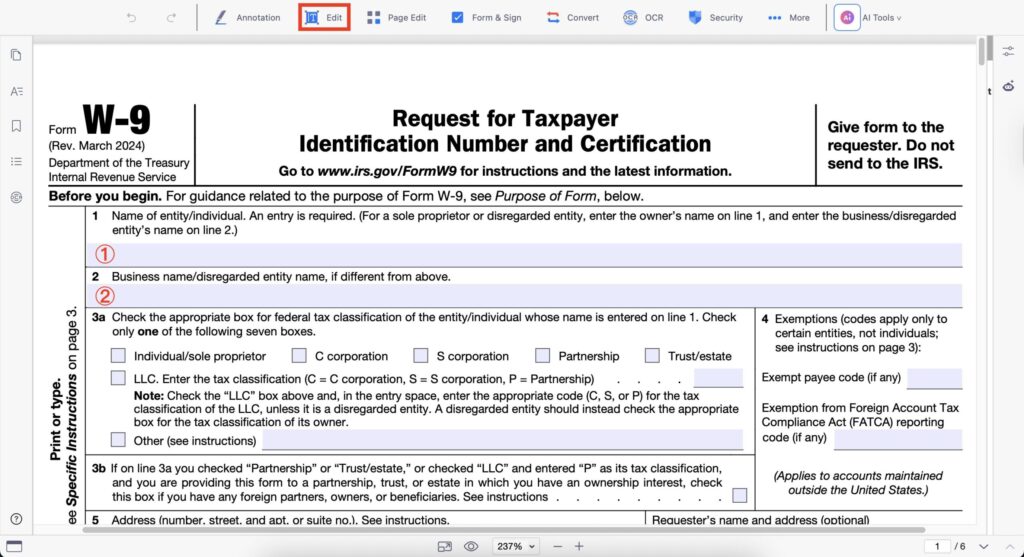
This is where most mistakes happen.
- Line 1 (Name): Enter your legal name exactly as it appears on your tax return.
- Line 2 (Business Name):
- If you are a freelancer working under your own name, leave this blank.
- If you have a “Doing Business As” (DBA) name or a disregarded entity LLC, write it here.
Using KDAN’s Editor:
Click the “Edit Text” or “Form Filling” tool. KDAN automatically detects form fields. If the PDF isn’t interactive, simply click “Add Text,” choose a professional font (like Helvetica or Arial), and place your name precisely on the line.
Step 3: Line 3 – Federal Tax Classification
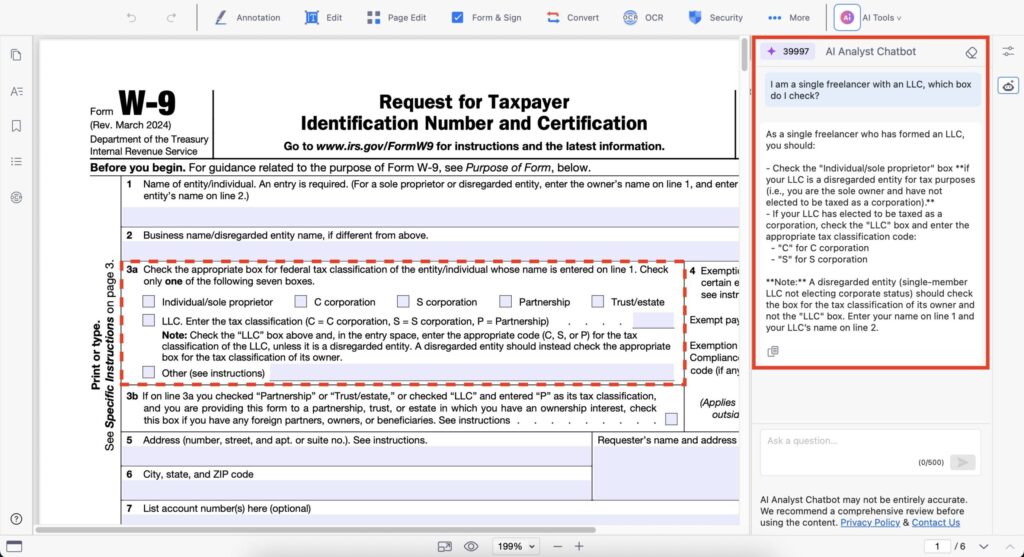
You must check only one of the seven boxes.
- Individual/sole proprietor or single-member LLC: Most freelancers check this.
- C Corporation / S Corporation / Partnership: Check these only if you have formally incorporated your business.
- Limited Liability Company (LLC): This is tricky. If you are a single-member LLC, the IRS usually treats you as a “disregarded entity,” meaning you might actually need to check the first box (Individual), not the LLC box, unless you filed Form 8832 to be taxed as a Corporation.
Stuck? Use KDAN AI to translate these terms. Ask the Chatbot: “I am a single freelancer with an LLC, which box do I check?” and get guidance instantly based on the form’s instructions.
Step 4: Part I – Taxpayer Identification Number (TIN)
Here, you will enter either your Social Security Number (SSN) or your Employer Identification Number (EIN).
- Individuals: Use your SSN.
- Entities: Use your EIN.
Security Alert: You are about to type your most sensitive piece of data into a digital file. Ensure you are using a secure editor like KDAN, which processes data locally on your device rather than uploading it to an unknown web server.
Step 5: Part II – Certification and Signing (Crucial Step)
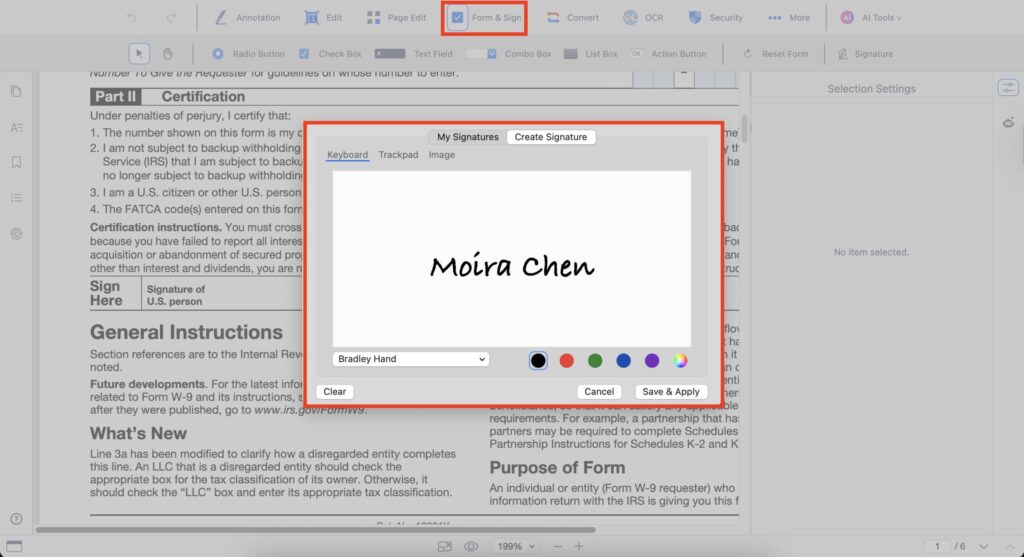
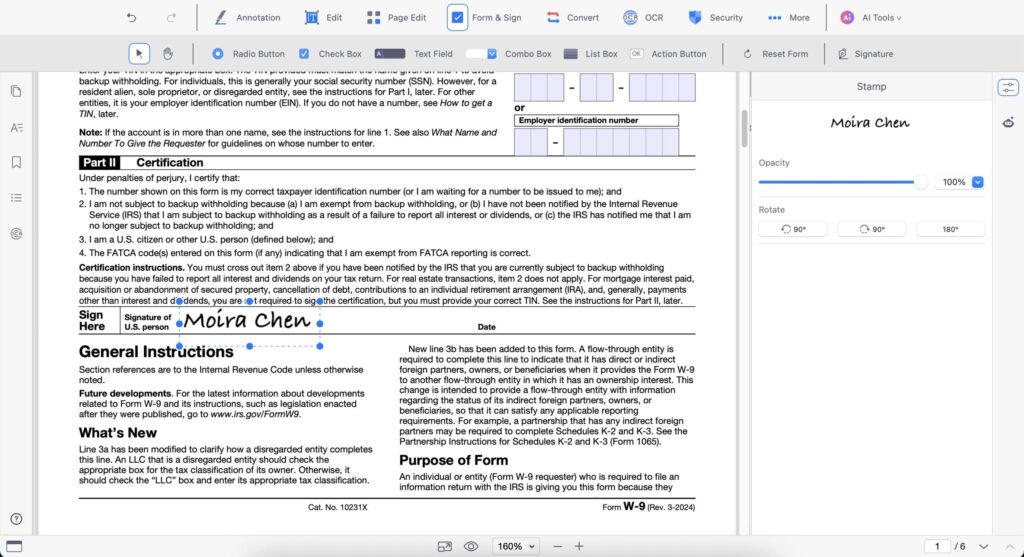
You must sign to certify that the TIN is correct. Instead of printing the form just to sign it, you can add a polished electronic signature directly on your screen. This ensures your document looks official and is ready for processing.
How to Sign with KDAN PDF:
- Click on the “Signature” tool (usually a fountain pen icon).
- Select “Create Signature.”
- You have three options:
- Trackpad/Mouse: Draw your signature directly.
- Image: Upload a photo of your real signature.
- Type: Select a cursive font style (perfect for a quick, legible sign-off).
- Once created, drag and drop your signature onto the “Sign Here” line. You can resize it to fit perfectly.
Cross-Device Agility:
Did you start editing on your Mac but need to sign with your finger? No problem.
With KDAN Document 365, your files sync across devices. Open the draft on your iPad or Android phone, use your finger or stylus to sign naturally on the touchscreen, and save. The changes sync back to your desktop instantly.
Protecting Your Sensitive Data: Security Best Practices
You just filled out a document containing your full name, address, and SSN. You should never email this file as a naked attachment. If your (or your client’s) email is hacked, your identity could be stolen.
KDAN PDF offers enterprise-grade security features that are accessible to everyone:
1. Password Protection
Before emailing the W-9, encrypt it.
- In KDAN, go to Security > Set Password.
- Choose a strong password.
- Send the PDF in one email, and text/Slack the password to your client separately. This “Two-Factor” approach drastically reduces risk.
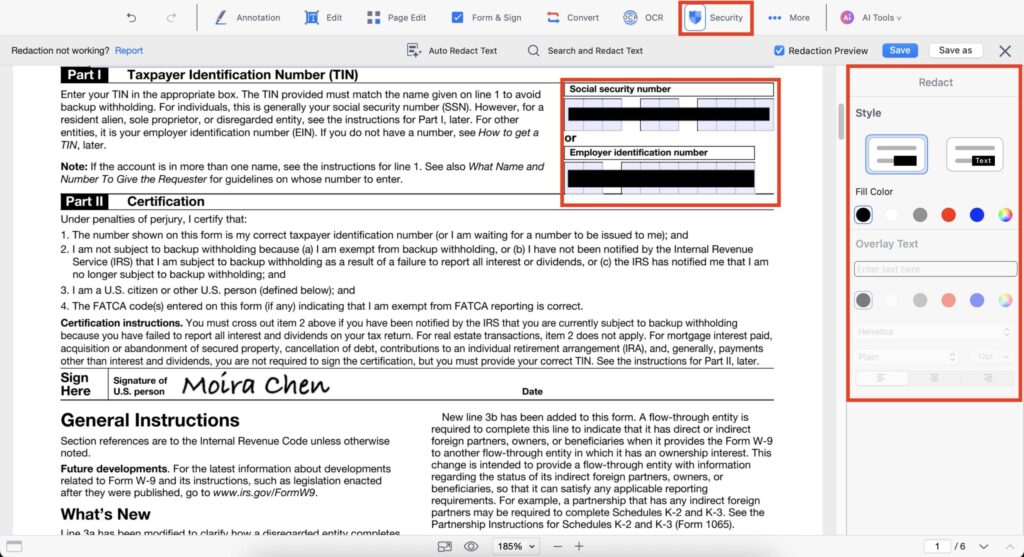
2. Auto Redact (For Saving Copies)
You should keep a copy of every W-9 you send for your own records. However, you don’t need the SSN visible on your archived copy.
- Use KDAN’s “Auto Redact” or “Security” feature to permanently black out the SSN on your local copy.
- This ensures that even if your computer is compromised, the sensitive digits are unreadable.
Why Choose KDAN PDF Over Adobe Acrobat?
If you are a creative professional, you are likely familiar with Adobe. But for document management, is it the best choice for you?
Adobe Acrobat is the industry giant, but it is often overkill—heavy, expensive, and strictly subscription-based. KDAN PDF positions itself as the “Smarter, Lighter Alternative.”
Here is a quick comparison for the value-conscious professional:
| Feature | Adobe Acrobat Pro | KDAN PDF |
| Primary Focus | Enterprise heavy lifting | Agile, Daily Document Work |
| Pricing Model | Expensive Monthly Subscription Only | Subscription OR Permanent License |
| AI Capabilities | Generative AI (Add-on cost) | Built-in AI Chatbot, Translation, Summary |
| Cross-Device | Yes | Yes (Mac, Windows, iOS, Android) |
| User Interface | Complex, steep learning curve | Intuitive, mobile-first design |
| File Opening Speed | Slower (Heavy resources) | Lightning Fast |
The “Permanent License” Game Changer
This is KDAN’s secret weapon. Many users hate the idea of “renting” their software.
If you only need to edit PDFs, fill forms, and sign documents occasionally, why pay every month forever?
KDAN offers a Permanent License option (especially popular for Mac and Windows users). You pay once, and you own the software for that version. This is ideal for freelancers who want to minimize monthly overheads.
However, if you need the full power of cloud syncing, cross-device access (e.g., Mac + Android), and advanced AI features, the Document 365 subscription is still significantly more affordable than Adobe’s equivalent.
Common Mistakes to Avoid When Filling a W-9
Even with great software, human error happens. Avoid these pitfalls:
- Forgetting to Date the Form: The IRS requires the signature date. KDAN’s “Insert Date” function can auto-fill today’s date so you don’t typo the year.
- Sending the Wrong Version: We often save files as “W9_Final,” “W9_Final_v2.”
- Tip: Use KDAN’s file manager to rename the file clearly, e.g., [YourName]_W9_2026_Signed.pdf.
- Typos in the SSN:
- Tip: Use KDAN’s “Read Aloud” (Text-to-Speech) feature to have the PDF read the numbers back to you to verify accuracy.
FAQ: Frequently Asked Questions
Absolutely. KDAN PDF has a top-rated iOS app. You can open the attachment from Mail, use “Open in KDAN,” fill the form, sign with your finger, and email it back—all without a computer.
Yes. Most clients and businesses today accept electronic signatures on W-9 forms to speed up the onboarding and payment process. KDAN PDF Reader allows you to create a crisp, professional-looking signature that eliminates the need for printing, signing, and scanning.
Sometimes clients send “flattened” PDFs. KDAN PDF’s OCR (Optical Character Recognition) feature can convert a static image PDF into an editable and searchable document, allowing you to fill in the fields even if the original file wasn’t “fillable.”
If English isn’t your first language, IRS instructions can be daunting. Kdan’s AI Translation feature can translate the selected text into your native language instantly, ensuring you understand exactly what you are signing.
Conclusion: Work Smarter, Not Harder
Filling out a W-9 form shouldn’t be a source of stress or a security risk. It’s simply a step towards getting paid for your hard work.
By moving away from printers and embracing KDAN PDF, you turn a 30-minute headache into a 2-minute task. You get the power of AI to explain tax terms, the flexibility to sign on your phone, and most importantly—enterprise-grade security to keep your SSN safe.
Ready to streamline your paperwork and protect your identity?
Secure Your Sensitive Financial Data for 2026.
Protect your SSN and financial records with enterprise-grade password encryption. Fill out W-9 forms and apply legally valid digital signatures with KDAN PDF for a safer, paperless filing experience.



Connect with KDAN
Follow us to receive all latest updates and promotions.