


 KDAN PDF for Windows
 Lifetime License for Windows
 LynxPDF for Enterprise
 ComPDF SDK
 Edit PDF
 Add Image
 Add Hyperlink
 Annotate PDF
 Fill in PDF
 Rotate & Crop
 Rearrange PDF
 Add Pages
 Delete Pages
 Bates Numbering
 Sign PDF
 Password Protect
 Unlock PDF
 Merge PDF
 Split PDF
 Convert PDF
 OCR PDF
 Compress PDF
 Slideshow Mode
How to Build Professional Reports with NotebookLM and KDAN PDF
Drafting a research report used to take days of manual reading and formatting. In 2026, the bottleneck has shifted. While AI can now scan and summarize data in seconds, the last mile of moving that data into a polished, client-ready PDF is where most professionals lose time.
If you want to keep your business on track, you need a workflow that handles the heavy lifting without sacrificing the professional look your clients expect. Here is how to bridge the gap between AI research and a finished deliverable.
Step 1: Research with NotebookLM
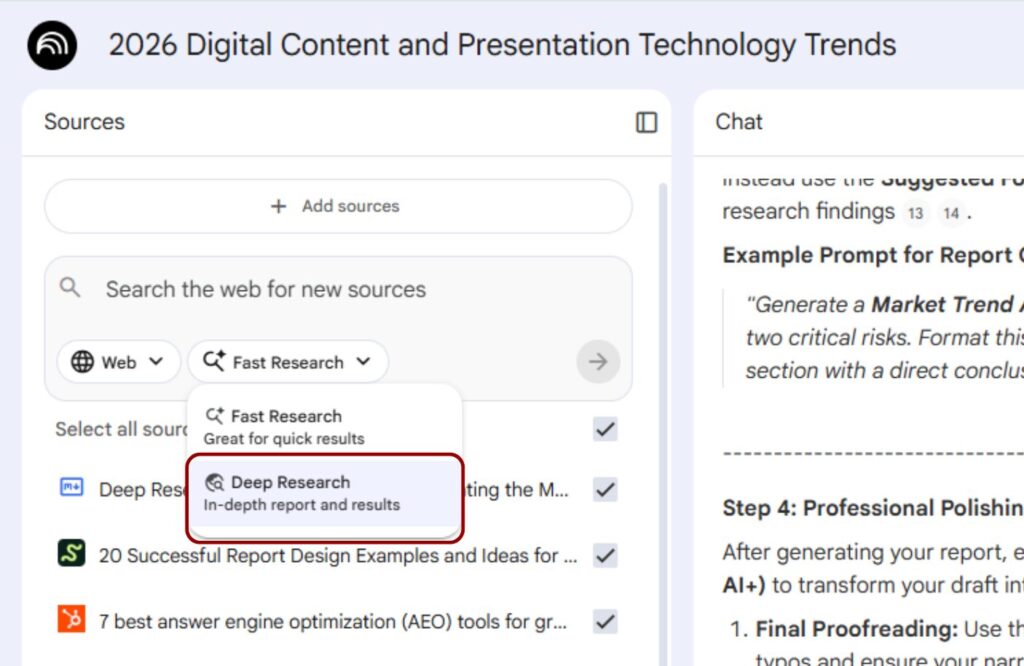
Start by creating a hub for your project. Instead of reading through dozens of tabs, upload your sources directly to Google NotebookLM. You can add PDFs, website URLs, and even YouTube links.
The goal here is to let the AI scan for patterns. Use the chat to ask specific questions like, “What are the core market risks mentioned across these files?” The AI will summarize the answers based only on the sources you provided, which keeps your data accurate and grounded.
Step 2: Draft and Review in Google Docs
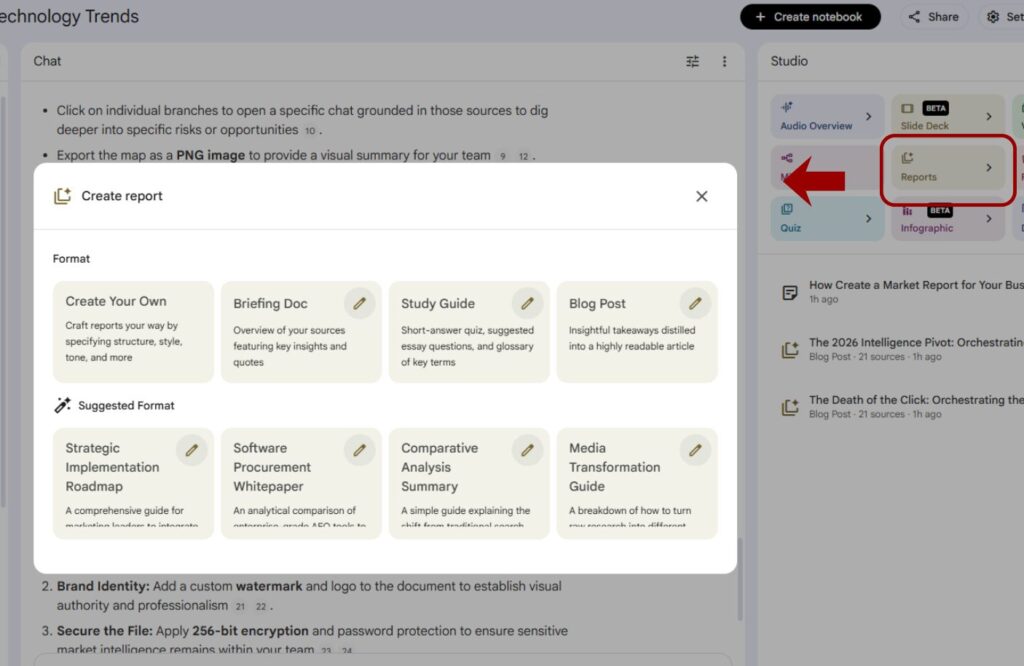
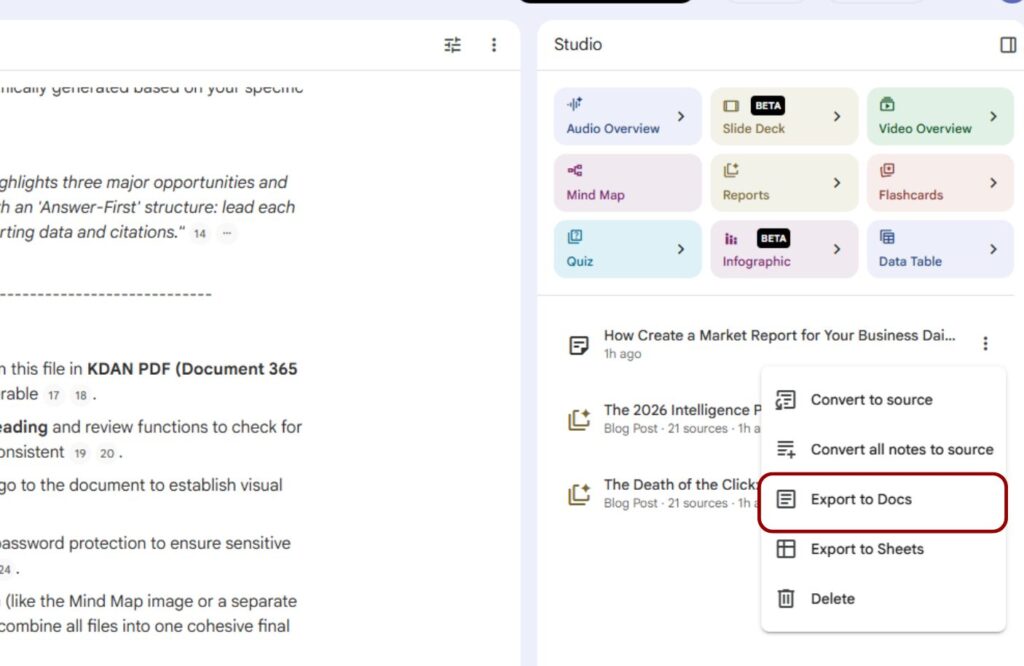
Once you have your insights, use the Studio panel to generate a briefing doc or a study guide. From there, you can export your notes directly to Google Docs.
This is your workspace for human refinement. Since Google Docs is great for collaboration, you can check citations with your team and edit the narrative to make sure it sounds like your brand. This is also the best place to handle your final security settings and internal permissions before you export the file.
Step 3: Finalize and Polish in KDAN PDF
The moment you export your work to a PDF, it becomes a professional deliverable. But a standard export often needs a quick fix. This is where KDAN PDF comes in to handle the final presentation.
Instead of going back to your Google Doc to fix a tiny typo and re-exporting the whole thing, you can edit text directly inside the PDF. It is the fastest way to make last-minute corrections before a meeting.
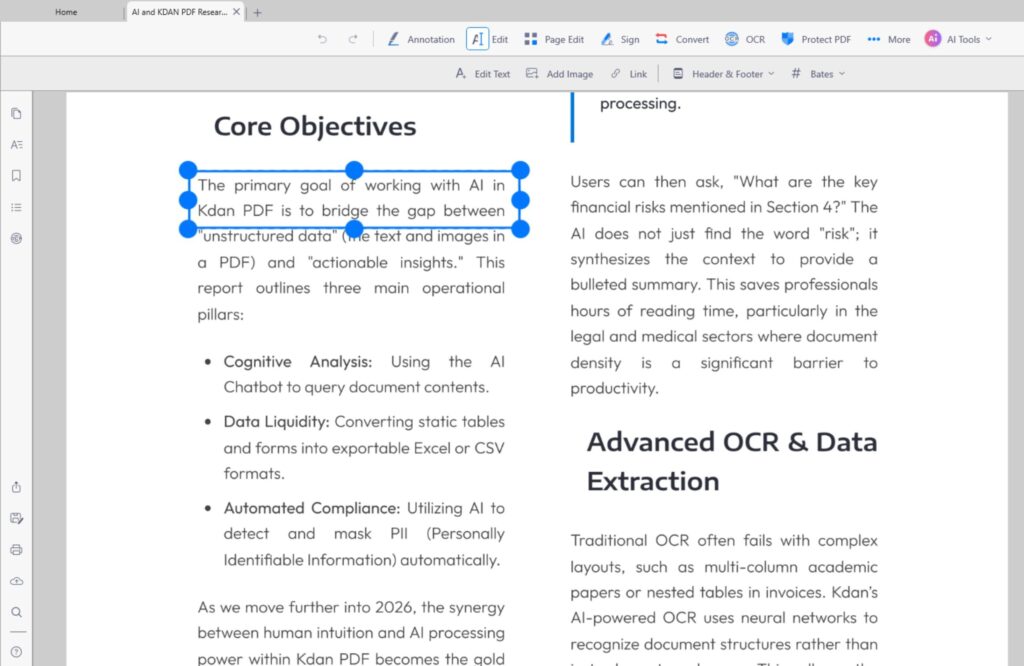
Fix Report Errors in Seconds
Found a mistake in your final PDF? No need to re-export. Edit text and merge pages on the fly with KDAN PDF.
If your report includes extra data sheets or separate research appendices, you can use the merge tool to combine everything into one clean file. You can also reorder pages with a simple drag and drop to make sure the most important information hits the reader first.
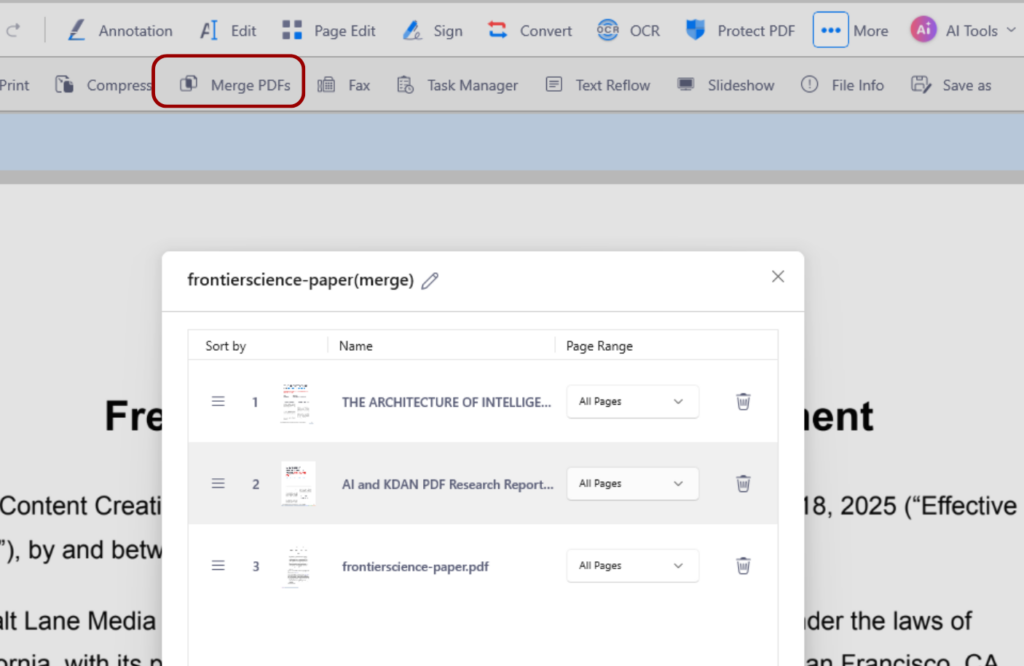
Which Tool Should You Use?
| Workflow Step | Tool | Best Action |
|---|---|---|
| Research | Google NotebookLM | Upload and Ask |
| Drafting | Google Docs | Write and Review |
| Delivery | KDAN PDF | Edit and Merge |
AI is a massive time-saver, but it still requires a professional touch to cross the finish line. By using NotebookLM to summarize your research and KDAN PDF to edit and merge your final files, you ensure your reports are both fast and flawless.
FAQ
Can I fix a typo in a PDF without the original file?
Yes. Using KDAN PDF, you can edit text directly on the page. You do not need to go back to your original draft or re-export anything.
How do I combine research notes with my main report?
The easiest way is to use a PDF editor. You can merge multiple documents into one and then reorder the pages so the flow makes sense for your client.
Does NotebookLM help with web research?
Yes. The 2026 Deep Research feature allows the AI to scan the web to find and summarize the most recent data points for your notebook.
Master Your AI Reporting
Take full control of your final deliverable. Seamlessly edit and reorder your reports on any device. Download now to try for free!


Connect with KDAN
Follow us to receive all latest updates and promotions.