


 KDAN PDF for Windows
 Lifetime License for Windows
 LynxPDF for Enterprise
 ComPDF SDK
 Edit PDF
 Add Image
 Add Hyperlink
 Annotate PDF
 Fill in PDF
 Rotate & Crop
 Rearrange PDF
 Add Pages
 Delete Pages
 Bates Numbering
 Sign PDF
 Password Protect
 Unlock PDF
 Merge PDF
 Split PDF
 Convert PDF
 OCR PDF
 Compress PDF
 Slideshow Mode
How to Turn a Screenshot into a PDF: Mac, Windows & iPhone Guide
Screenshots are a fast way to capture receipts, chats, or online information, but image files can be hard to manage or share. Converting them to PDFs makes storage, printing, and sharing much easier while keeping the original quality intact.
Whether you need to archive receipts or share confusing error messages, knowing how to turn a screenshot into a PDF is a productivity essential. This process simplifies file management across all devices. Whether you are searching for how to turn a screenshot into a PDF on Mac or how to turn a screenshot into a PDF on iPhone, this guide covers built-in methods and professional tools to get the job done effortlessly.
This guide explains three easy ways to convert your screenshots into PDFs using built-in features, KDAN PDF, or online converters.
Method 1: Using Built-In Tools
You can easily turn a screenshot into a PDF using the built-in features on your device. These native methods are quick, free, and require no extra software.
Steps:
On Mac
- Open the screenshot in Preview.
- Navigate to File > Export as PDF.
- Select your destination, rename the file if necessary, and click Save to finish.
On Windows
- Right-click the screenshot and select Print.
- In the printer menu, choose Microsoft Print to PDF.
- Click Print and select where to save your new PDF.
On iPhone or iPad
- Open the screenshot in the Photos app.
- Tap the Share button and choose Print.
- On the print preview, use two fingers to pinch out (zoom in) until it becomes a PDF preview.
- Tap the Share button again to save or send the PDF via Files, Mail, or another app.
On Android
- Open the screenshot in the Gallery or Photos app.
- Tap the Share icon and select Print.
- Under the “Select a Printer” dropdown menu, choose Save as PDF.
- Confirm and select a save location.
Limitations of Built-In Tools
- Single-file limits: Combining multiple screenshots usually requires extra manual steps.
- No Text Search: Standard conversions result in static images, meaning the text isn’t searchable (no OCR).
- Large File Sizes: High-resolution screenshots can create bulky PDF files that are hard to email.
Method 2: How to Turn Screenshot into PDF Using KDAN PDF
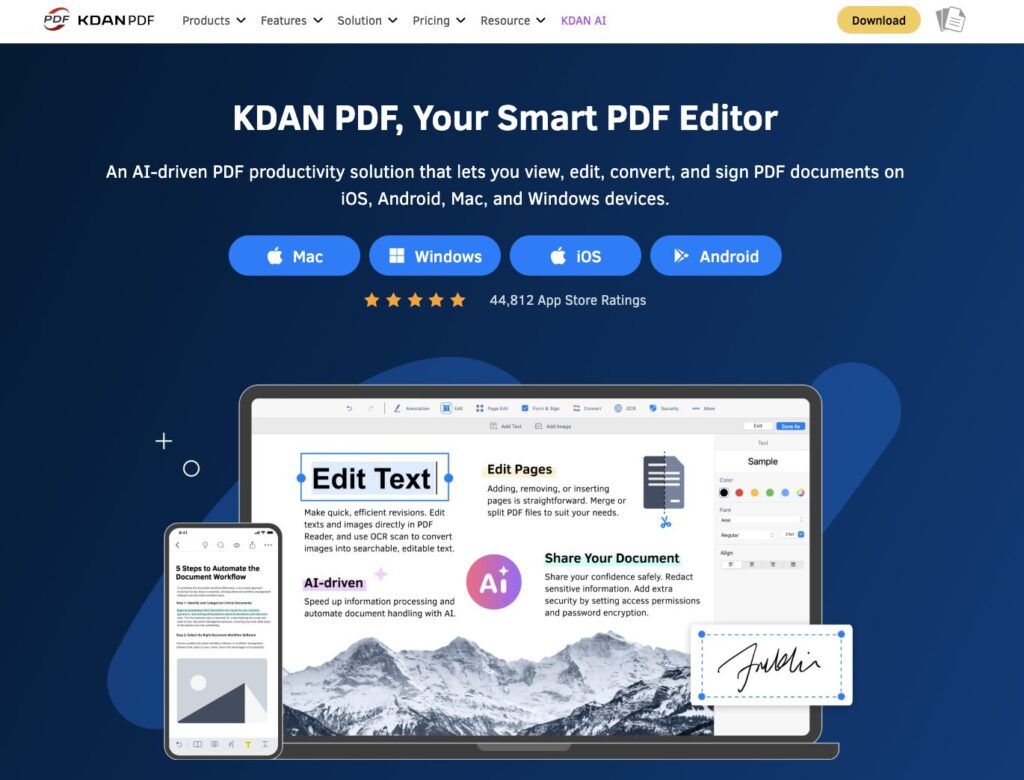
If you want more flexibility or need to convert multiple screenshots at once, using a professional PDF app is the best solution. KDAN PDF offers both mobile and desktop versions, allowing users to create, edit, and manage PDFs seamlessly across devices.
Merge Screenshots to PDF
Combine multiple images into one file instantly with KDAN PDF.
Steps
- Open KDAN PDF on your phone or computer.
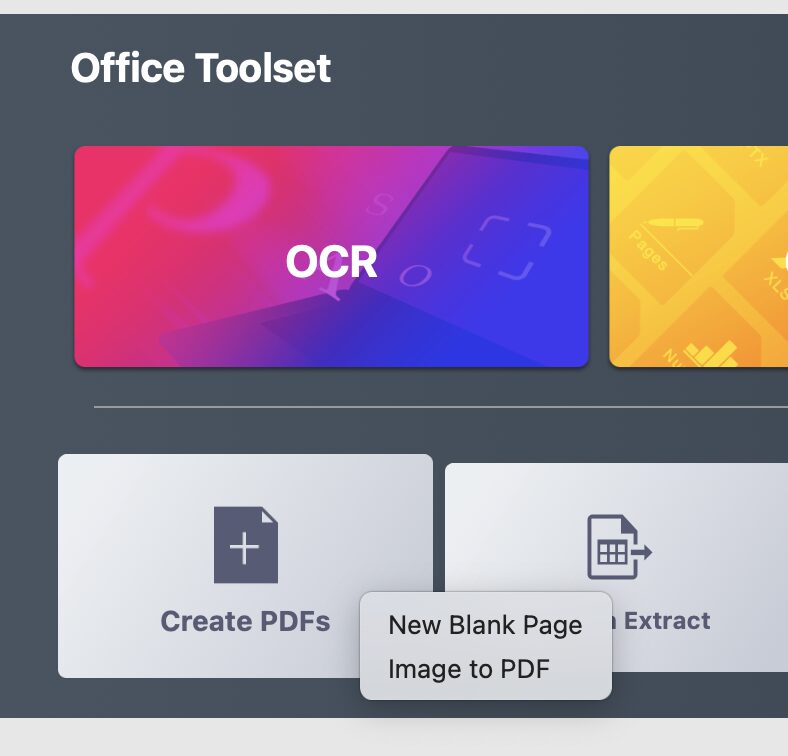
- Import your screenshots from your photo gallery, local drive, or integrated cloud storage.
- Select the “Image to PDF” tool (or “Create PDF” on mobile) from the main menu.
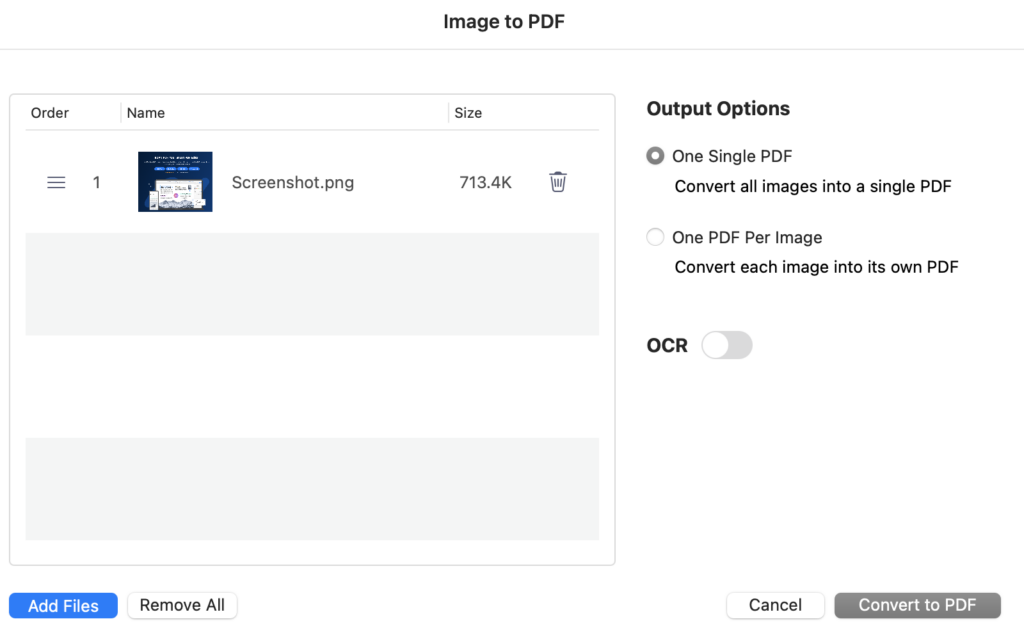
- Save or share the converted PDF through email, cloud, or messaging apps.
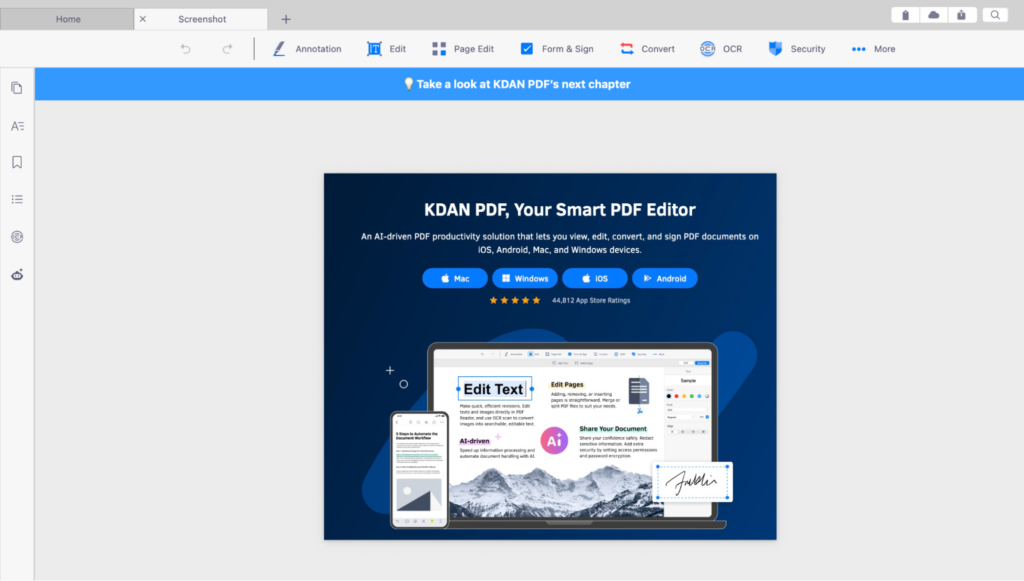
Key Features
- Batch Conversion: Merge multiple screenshots into one professional report instantly.
- AI-Powered OCR: Make text within your screenshots searchable and editable.
- Cross-Platform: Seamlessly switch between your iPhone, Mac, and Windows PC.
Method 3: How to Turn a Screenshot into a PDF Using Online Conversion Tools
If you prefer not to install additional software, online converters offer a simple way to create PDFs directly in your browser. This method works well for quick, one-time conversions and supports all devices, including Mac, Windows, iPhone, and Android.
Steps:
- Upload the screenshot to a reliable online converter such as Smallpdf, iLovePDF, or PDF.io.
- Choose the output format as PDF.
- Wait for the file to process, then download the converted PDF to your device.
Limitations of Online Converters
While convenient, online converters also come with a few drawbacks:
- Privacy Risks: Uploading sensitive screenshots (like bank receipts or chats) to third-party servers can compromise data security.
- File size limits: Many free converters restrict the number or size of files you can upload at once.
- Internet dependency: Conversion requires a stable connection, which can slow down large file processing.
- Limited customization: Most tools only convert files without offering editing, merging, or OCR features.
If you need more control over file security, speed, and advanced editing, a dedicated app like KDAN PDF provides a safer and more professional alternative for converting and managing your documents.
Tips for Better Results
To make the most out of your converted PDFs, here are a few practical tips to improve quality, readability, and efficiency:
- Combine multiple screenshots into one PDF to create step-by-step guides, tutorials, or visual reports. This helps maintain context and makes your file easier to review.
- Leverage OCR for Smart Search: Use an OCR-enabled editor to extract text from your screenshots. This is crucial for students or professionals who need to copy-paste text from an image-based PDF into notes or reports.
- Compress large image-based PDFs before sharing or uploading. It reduces file size while keeping visual clarity, ensuring smoother transfers through email or cloud platforms.
- Organize your PDFs with tags or folders to quickly locate files later, especially when working on multiple projects.
- Review your converted files to check image alignment, page order, and resolution before finalizing.
FAQ
Q: Is it free to turn a screenshot into a PDF? A: Yes, you can use built-in tools on Mac, Windows, iPhone, and Android to “Print to PDF” for free. However, for advanced features like combining multiple screenshots into one file or making the text editable (OCR), a dedicated tool like KDAN PDF offers a more efficient solution.
Q: How do I combine multiple screenshots into one PDF? A: Built-in tools often require you to convert images one by one. To combine them, the easiest way is to use a PDF editor app. In KDAN PDF, you can simply select multiple images from your gallery and tap “Create PDF” to merge them instantly into a single document.
Q: Why can’t I search or copy text in my converted PDF? A: A standard screenshot-to-PDF conversion creates an “image-based PDF,” meaning the text is just a picture. To make the text searchable or copy-pasteable, you need a tool with OCR (Optical Character Recognition) technology, which is a key feature available in KDAN PDF.
Q: Is it safe to use online PDF converters? A: Online converters require uploading your files to a third-party server, which poses a potential privacy risk for sensitive or personal screenshots. Using a dedicated app like KDAN PDF is a safer alternative as it allows you to manage files without relying on browser-based uploads.
Conclusion
Converting screenshots into PDFs is a quick and reliable way to keep your visual information organized, easy to share, and professional-looking. Whether you’re creating reports, saving receipts, or preparing tutorials, turning images into PDFs ensures consistent formatting and long-term accessibility.For those who frequently manage or edit files, using a dedicated tool like KDAN PDF makes the process even faster. With its simple interface, cross-device access, and features like OCR, file compression, and batch conversion, KDAN PDF helps you handle your documents efficiently — all in one place.
Make Screenshots Searchable
Turn image text into editable content with AI-powered OCR. Try it free.



Connect with KDAN
Follow us to receive all latest updates and promotions.